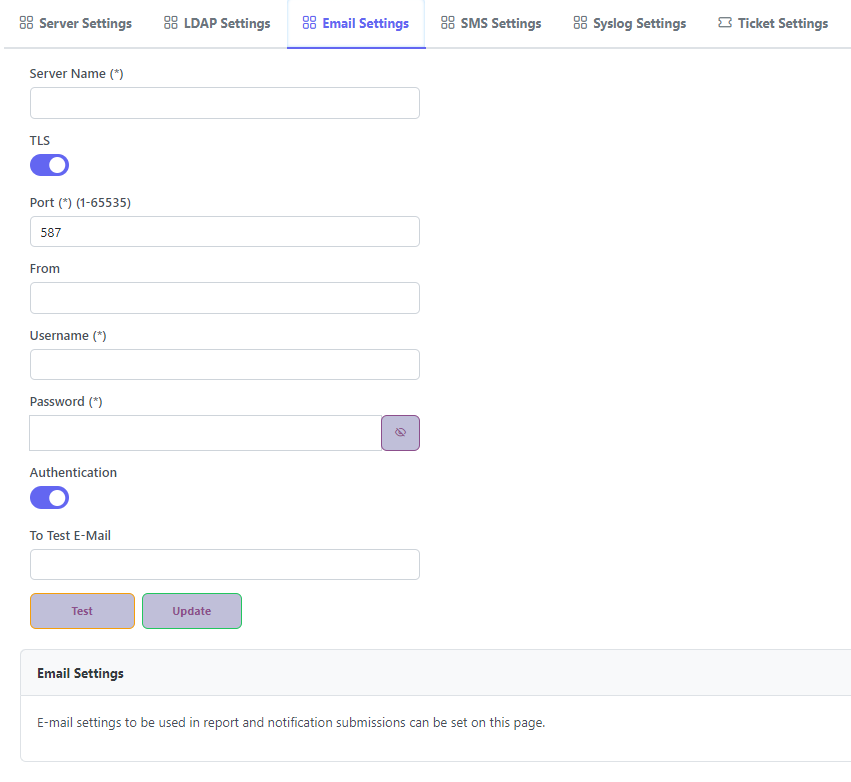
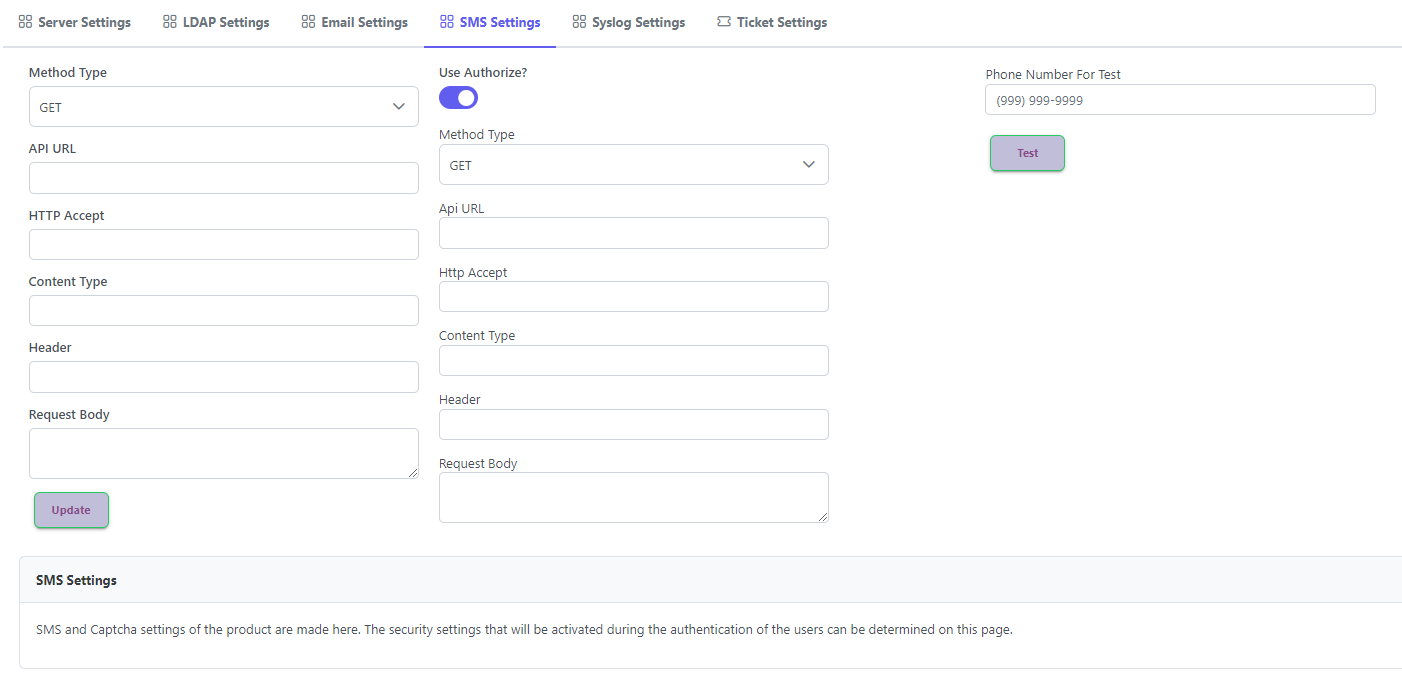
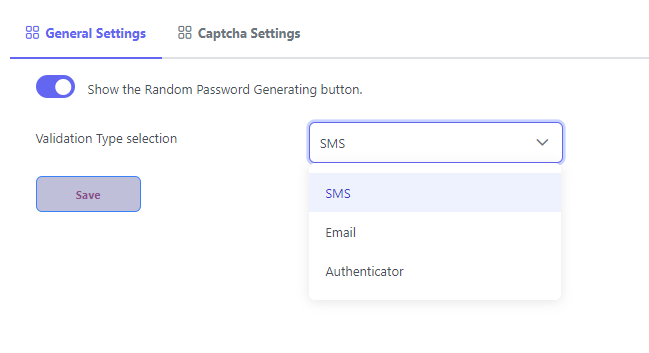
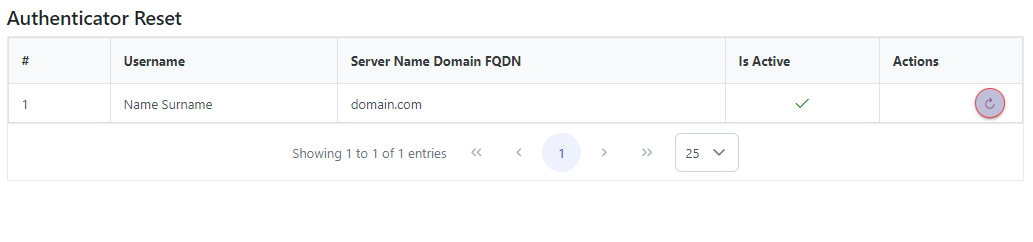
> This is part 1 of 2 of the full documentation (pages 1–100 of 103).
> The content is paginated: fetch every part to see all of it.
> Next part: https://docs.arksspr.com/llms-full.txt/1
> Page index: https://docs.arksspr.com/llms.txt

# ARKSSPR

> ## [Overview](/master/overview)

> ## [Planning](/master/planning)

> ## [Deployment](/master/deployment)

> ## [ARKSSPR User Guide](/master/arksspr-user-guide)

> ## [Troubleshooting](/master/troubleshooting)


# Overview

ARKSSPR is a self service password reset solution.&#x20;

## What's New in 2.0.75 Version

* Blacklists are now available for download.
* A new endpoint has been added to the external API for password history checks.
* The "Last Password Reset Set" feature has been added. The daily password reset limit defined in the AD policy will now be retrieved by the SSPR application and applied accordingly for the user.

## What's New in 2.0.72 Version

* Regex Template creation added.
* Support for international phone numbers has been provided.
* Delegation role problem has been fixed.
* Phone Number formats have been transferred to JSON.

## What's New in 2.0.70 Version

* Spelling errors have been fixed,
* The problem of being able to go to a role-based URL by entering a URL that should not be entered has been fixed,
* The problem with delegation authorization has been fixed,
* The problem of the user not being able to get role permissions from the authority given to the group where the domain name is in 3 parts has been fixed,
* The error in logging in with UPN has been fixed,
* Corrections have been made in the mobile view,
* Minor bugfix in Blacklist feature,
* Blacklist Regex feature has been added,
* A control arrangement has been added regarding the 00 expression used in phone numbers,
* Enter has been processed and displayed in the Password Reset and Change Information Message section,


# What is ARKSSPR

ARKSSPR (All Versions)

ARKSSPR is a portal that enables users in the Active Directory environment to manage their own passwords. Users can change and reset their password, and unlock their account through the portal without needing the help of an administrator. While performing these operations, secondary verification and captch verifications can be used in all steps. In this way, security measures are used to verify identity and prevent bot transactions.

## What's New in ARKSSPR 2.0

### DMZ Support

**DMZ**: Designed for access by Internet users only. It directs incoming requests on the Internet to the Internal ARKSSPR server like a proxy and forwards the response to the user. It has no business logic. Even if you have administrative rights on this screen, administrative screens will not open. Access to the Internal system is required to open administrative screens.

**Internal Installation**: It is used only for access by users in the internal network. Although not recommended, it can also be used for Internet access in environments where there is no physical DMZ network. With Internal ARKSSPR, users can manage their passwords and accounts, while administrators can manage ARKSSPR and report.

### My Account

Users can perform operations such as changing passwords and determine secondary verification options from the My Account window.

### 2FA Support with

**SMS**: A secondary verification code can be sent via ARKSSPR with the SMS provider information used by the company, and users can securely perform password and account operations via ARKSSPR.

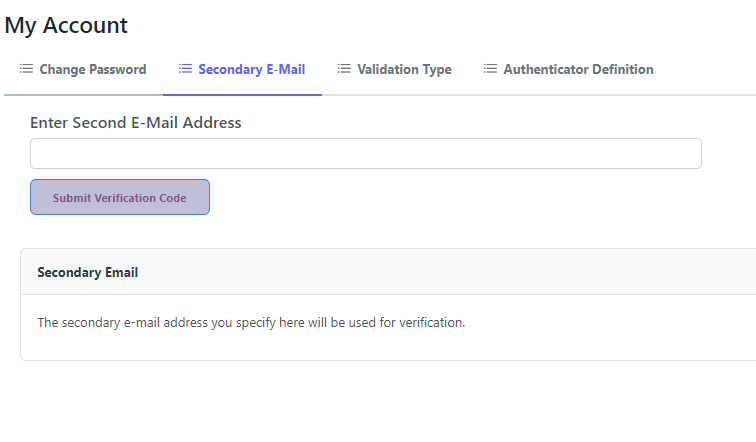
**Secondary E-Mail**: Secondary verification code for password and user account operations can be sent via E-Mail. After logging into the system, users can enter an e-mail address of their choice and use it to send a secondary verification code. In future versions, administrators will be able to make bulk entries using the csv file import.

**Authenticator**: Secondary verification code for password and user account operations can be generated through Authenticator software that can be installed on mobile phones. After logging into the system, users can start using the authenticator software they want by registering.

### Password History Control (for AD environments)

For ARKSSPR password change and reset operations, at least Active Directory password policies apply, and a higher password policy can be determined through administrator settings. However, these policies are only for operations to be made through ARKSSPR.

### Reporting

All password and account operations performed through ARKSSPR are recorded in the database. Operations performed with various reports can be viewed. The number of reports and formats will continue to be improved and increased in subsequent versions. It is possible to send reports periodically to a specified e-mail address.

* Login Report
* Password Change Report
* Password Reset Report
* Unlock Report
* General SSPR Report

### Role management

With to role management, ARKSSPR managements can be delegated. While members of the Administrators group can manage the entire system, the Report Operator can only see reports. The Restricted User role is used to define users and groups that cannot perform password and account operations on ARKSSPR.

### Multi-Domain support

Password and account management operations are supported for multiple Active Directory domains.

### Data grooming

The legal data retention period for the company can be adjusted under grooming. After this period, any remaining data will be automatically cleared from the database.

### Syslog support

With supported RFC3164 and RFC5424 formats, Syslog messages can be automatically forwarded to syslog servers. In future versions, the data to be sent will be classified and the types of data sent will be made rule based.

### Random password generation engine

For the convenience of users, there is a password generation button that can be accessed from every point of the product. This password is not stored anywhere. If desired, the generated passwords can be used.

### Captcha support

Captcha technology, which is seen as proof that the activities are not carried out by robot software, can be used selectively at every point of the product.

### Blacklist support

With a file that can be uploaded by the system administrator, passwords that are not intended to be used in password operations via ARKSSPR can be determined. It does not affect password operations made outside of ARKSSPR.

### Screen customization

With ARKSSPR 2.0, system administrators will be able to customize the screen without the need for any additional development. Logo, favicon, background, and title information, which can clearly contain company information on the screen, can be made in screen customization. Additionally, menu background and text colors can be adjusted.

### Ticket management

The support screen has been integrated so that end users who have problems with password or account operations can open a ticket regarding the problem they are experiencing. API endpoint support that can be integrated with external help desk software will be added in future versions.

### Turkish and English language support

ARKSSPR has Turkish and English language support. With flexible structure, other language support can be quickly added upon request.

### RegEx Support in Password Blacklist

By creating regex templates, system administrators can prevent users from providing simple or predictable passwords when changing their passwords via ARKSSPR.

### International Phone Support

There is international normalization support for phone numbers to which SMS will be sent.


# FAQs


# Road-Map

<table><thead><tr><th width="176.33333333333331">Version</th><th width="207">Date</th><th>Description</th></tr></thead><tbody><tr><td>ArkSSPR 1.0</td><td>01/01/2020</td><td>Self Password Reset, Password Change,<br>Customer Customization</td></tr><tr><td>ArkSSPR 2.0</td><td>01/10/2023</td><td><p>Self Password Reset, Password Change,</p><p>Fully compliance with Active Directory password policy,</p><p>Password Generator,</p><p>Help desk module for Password operations,</p><p>Reporting,<br>Customer Self Customization for Admin Panel<br>Black-List<br>Syslog support,<br>Multi-Domain support,<br>SMS, Secondary Email and Authenticator support for 2FA.<br>Rol Management,<br>Reporting,<br>Policy based password management</p></td></tr><tr><td>ArkSSPR 2.0.66</td><td>01/05/2024</td><td>Reset password button on Windows Logon screen,<br>External API Access for Password Reset Operations<br>Option to reset password on behalf of someone else (delegation),</td></tr><tr><td>ARKSSPR 2.1.0</td><td>November ‎28, ‎2025</td><td>.Net 10 Conversion Completed</td></tr></tbody></table>


# Licensing

ARKSSPR (All Versions)

ARKSSPR software has the following license types.

* Demo: It is the version that provides 10 user passwords management for 30 days. All features are available.
* Standard: Unlimited users can be managed. It can be used for the period of purchase.
* Advanced: With the agent support, users can perform password reset, account unlock and password change operations themselves without logging on to the Windows Logon screen.


# Planning


# POC Requirements

Scope: ARKSSPR 2.0

## Downloads

* Latest ASP.NET Core Runtime 10.x: 10.0.0 [Hosting Bundle](https://dotnet.microsoft.com/en-us/download/dotnet/thank-you/runtime-aspnetcore-6.0.32-windows-hosting-bundle-installer)
* [.Net Framework 4.7.2](https://download.microsoft.com/download/f/3/a/f3a6af84-da23-40a5-8d1c-49cc10c8e76f/NDP472-KB4054530-x86-x64-AllOS-ENU.exe) for agent on client computers. (Available for current Windows versions, older versions may require download.)
* SSMS (SQL Management Studio) (<https://aka.ms/ssmsfullsetup>)
* For license control, TCP80/TCP443 access must be provided to <https://license.arksoft.com.tr>. Offline license is provided in closed networks. For license, please contact <sales@arksoft.com.tr>.
* Latest ARKSSPR Server Setup: [Download 2.1.2](https://eas2patch.s3.dualstack.eu-central-1.amazonaws.com/dl/arksoft/arksspr/2.1.2/arksspr-setup-server-2.1.2.1008.msi) Package

## Hardware Requirements

* RAM: At least 16GB, recommended 12GB (Reserved/Fixed)
* CPU: At least 2, recommended 4 vCPU
* Disk: 100GB OS
* Operating System: Windows Server 2019/2022/2025 - Standard/DataCenter&#x20;

## Network Requirements

* The TCP 80/443 port must be opened from the Client and Servers to the ARKSSPR server.
* The LDAP / LDAPS - TCP 389 / TCP 636 port must be opened from the ARKSSPR Server to the Domain Controller servers.&#x20;
* The server must be a member of the domain.

## Other Operating System Requirements

* According to the installation method, if ARKSSPR; (Link will be provided in the installation guide) will be managed with a service account, an account that is a member of the “Domain Users” group is required to run the service on AD (must have local admin authority on the machine).
* If it will be managed with GMSA, a GMSA account must be created and the account must be checked.
* If it will be managed with a built-in account, no preliminary settings are required.&#x20;
* A Web Server certificate containing the FQDN to be obtained from the local CA server is required. Although it is not recommended at the POC stage, the certificate step can be skipped.&#x20;
* It is recommended that the regional settings of the server where the installation will be performed should always be “United States”.&#x20;
* For agent access, a new Service Locator DNS record named \_arksspr.\_tcp is required.


# Supported Configurations

ARKSSPR makes use of your servers, and network configurations.

This document can help you identify key configurations, requirements, and limitations. Use it to plan, deploy, and maintain ARKSSPR deployment.

Products that are beyond their support lifecycle aren't supported for use with ARKSSPR. For more information about supported systems for ARKSSPR, see [Windows Server Requirements](/master/planning/windows-server-requirements) and [SQL Server Requirements](/master/planning/sql-server-requirements) for ARKSSPR Server.


# Windows Server Requirements

This article details the Windows Server versions that you can use to host a ARKSSPR server role.

Starting ARKSSPR 2.1, Windows Server 2019, 2022, 2025 is supported. ARKSSPR server requires .Net Core 10.0. Therefore, latest .Net Core 10.0 supported systems are among the supported operating systems for ARKSSPR. See [Supported OS for .Net Core 10.0](https://github.com/dotnet/core/blob/main/release-notes/10.0/supported-os.md) documentation. Also see [Windows Server Release Information](https://learn.microsoft.com/en-us/windows-server/get-started/windows-server-release-info).


# SQL Server Requirements

ARKSSPR environment requires a supported SQL Server version and configuration to host the ARKSSPR database.

SQL Server can be located on:

* ARKSSPR server computer,
* A computer that is remote from the site server.

The following instances are supported:

* The default or named instance of SQL Server,
* A SQL Server Always On failover cluster instance,
* A SQL Server Always On Availability Group.

## Supported versions of SQL Server

In a hierarchy, Internal ARKSSPR server access the SQL Server database:

* The SQL Server versions you use remain in support by Microsoft.
* For SQL Server 2016 and prior, support for each SQL Server version and service pack follows the [Microsoft Lifecycle Policy](https://learn.microsoft.com/en-us/lifecycle/products/?products=sql-server). Support for a specific SQL Server service pack includes cumulative updates unless they break backward compatibility to the base service pack version

SQL Server 2019: Standard, Enterprise or Express. You can use this version with cumulative update 5 (CU5) or later, as long as your cumulative update version is supported by the SQL Server lifecycle. CU5 is the minimum requirement for SQL Server 2019 as it resolves an issue with scalar UDF inlining.

SQL Server 2017: Standard, Enterprise or Express. You can use this version with cumulative update version 2 or higher, as long as your cumulative update version is supported by the SQL Server lifecycle.

SQL Server 2016: Standard, Enterprise or Express. You can use this version with the minimum service pack and cumulative update supported by the SQL Server lifecycle.

SQL Server 2014: Standard, Enterprise or Express. You can use this version with the minimum service pack and cumulative update supported by the SQL Server lifecycle.

## SQL Server architecture version

Configuration Manager requires a 64-bit version of SQL Server to host the site database.

## Database collation <a href="#database-collation" id="database-collation"></a>

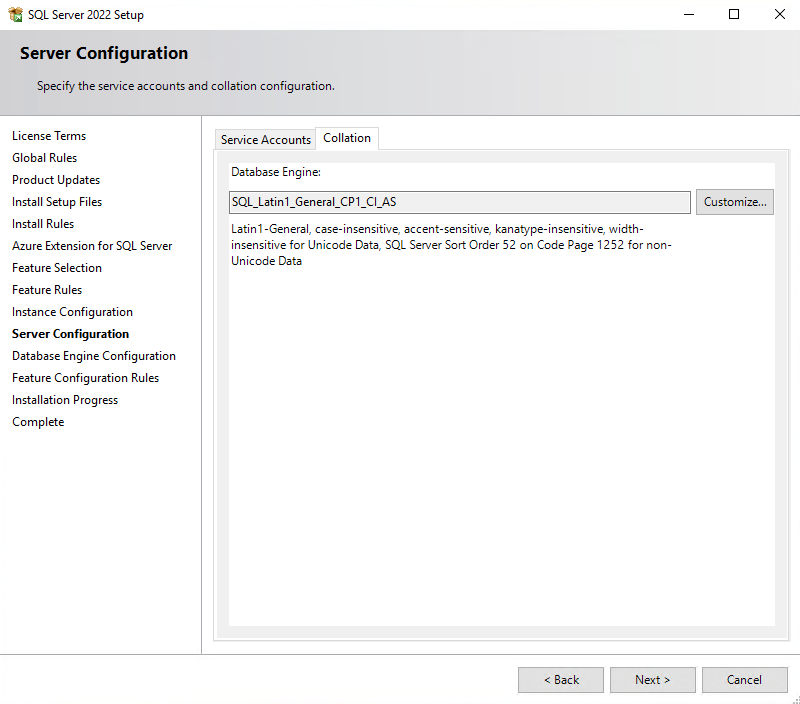
SQL Server that's used for the database must use the following collation: **SQL\_Latin1\_General\_CP1\_CI\_AS.**

## Database compatibility level

The following table identifies the recommended compatibility levels for Configuration Manager site databases:

| SQL Server version | Supported compatibility levels | Recommended level |
| ------------------ | ------------------------------ | ----------------- |
| SQL Server 2016    | 130                            | 130               |
| SQL Server 2017    | 140, 130                       | 140               |
| SQL Server 2019    | 150, 140, 130                  | 150               |
| SQL Server 2022    | 160, 150, 140, 130             | 160               |

## Permissions

During the installation of ARKSSPR, the user account that will perform the database operations needs the sysadmin role to create a database and make basic settings. After the installation is finished, the dbOwner role is necessary and sufficient for service accounts and ARKSSPR administrators.


# Network Requirements

ARKSSPR is a self-service password reset and account unlock solution that integrates with Active Directory.\
For successful operation, certain network configurations and firewall permissions must be in place.

### **Default & Configurable Parameters**

* The ports and protocols listed in this document are **default values**.
* **E-Mail (SMTP), Syslog, and database connections** are configurable according to your environment.
* The ARKSSPR web application can be published via **any custom port** according to deployment requirements.
* Optional integrations (Syslog, remote DB, SMS) require corresponding outbound firewall permissions.

### **Network Communication Requirements**

| **Source**                   | **Direction** | **Destination**                     | **Protocol** | **Port(s)** | **Purpose**                         |
| ---------------------------- | ------------- | ----------------------------------- | ------------ | ----------- | ----------------------------------- |
| Internal ARKSSPR Server      | -->           | Internet (`license.arksoft.com.tr`) | TCP          | 443         | License validation                  |
| DMZ ARKSSPR Server           | -->           | Internal ARKSSPR Server             | TCP          | 80, 443     | Web traffic relay                   |
| Internal Clients             | -->           | Internal ARKSSPR Server             | TCP          | 80, 443     | User access to ARKSSPR portal       |
| Internet Clients             | -->           | DMZ ARKSSPR Server                  | TCP          | 80, 443     | External user access (if published) |
| Internal ARKSSPR Server (\*) | -->           | E-Mail Server                       | TCP          | 587         | <p>OTP emails<br>Report Mails</p>   |
| Internal ARKSSPR Server      | -->           | Database Server                     | TCP          | 1433        | Database connectivity               |
| Internal ARKSSPR Server      | -->           | Syslog Server                       | UDP          | 514         | Security and audit log forwarding   |
| Internal ARKSSPR Server      | <-->          | SMS Provider                        | HTTPS (TCP)  | 443         | Sending SMS-based OTP codes         |

`(*)` Outbound SMTP port may vary depending on configuration (25, 465, or 587).

### **Additional Communication (Domain Integration)**

| **Communication**                         | **Protocol** | **Port(s)**                   | **Purpose**                                |
| ----------------------------------------- | ------------ | ----------------------------- | ------------------------------------------ |
| ARKSSPR Web Server ↔ Active Directory DCs | LDAP / LDAPS | 389 / 636                     | User authentication, password change/reset |
| ARKSSPR Web Server ↔ Active Directory DCs | Kerberos     | 88                            | Authentication and ticket granting         |
| ARKSSPR Web Server ↔ Active Directory DCs | RPC / SMB    | 135, 445, dynamic 49152–65535 | AD management operations                   |
| ARKSSPR Web Server ↔ NTP Server           | NTP          | 123                           | Time synchronization                       |

### **Firewall & Security Considerations**

* Restrict inbound access to ARKSSPR portal to authorized networks or VPN users.
* Use **LDAPS (636)** instead of plain **LDAP (389)** where possible for secure directory communication.
* For RPC dynamic ports, limit firewall rules to the necessary range.
* Ensure **TLS 1.2 or higher** is enabled on the ARKSSPR server and client browsers.

### **High Availability / Load Balancer Notes**

* If deploying behind a load balancer, enable **session persistence (sticky sessions)**.
* All HA nodes must have identical firewall and port access configuration.

```
[User Browser] → HTTPS(443*) → [ARKSSPR Web Server] → LDAP/LDAPS/Kerberos/RPC → [AD DCs]
                                                 ↘ SMTP(587*) → [Mail Server]
                                                 ↘ HTTPS(443*) → [SMS Provider]
                                                 ↘ HTTPS(443) → [License Server]
                                                 ↘ Syslog(514*) → [Syslog Server]
                                                 ↘ TCP(1433*) → [Database Server]

```


# Design

ARKSSPR has 2 different installations: Internal and DMZ. Depending on the need, only Internal installation or both installations can be made.

**Internal system**: It is used only for access by users in the internal network. Although not recommended, it can also be used for Internet access in environments where there is no physical DMZ network. With Internal ARKSSPR, users can manage their passwords and accounts, while administrators can manage ARKSSPR and report. The server does not have to be a domain member. The recommended configuration is to be a domain member.

**DMZ**: Designed for access by Internet users only. It directs incoming requests on the Internet to the Internal ARKSSPR server like a proxy and forwards the response to the user. It has no business logic. Even if you have administrative rights on ARKSSPR, administrative screens will not work. Access to the Internal system is required to open administrative screens. As with all servers in the DMZ network that open to the internet, the ARKSSPR DMZ Setup must not be a member of the domain.


# Topology

<figure><img src="https://60632999-files.gitbook.io/~/files/v0/b/gitbook-x-prod.appspot.com/o/spaces%2F-MgdlemWm0JI6_ILmafb%2Fuploads%2Fh2zPB6larOwtslxpU5dm%2Farksspr%20topolojisiF%C4%B0NAL.png?alt=media&amp;token=f34bcd2d-2f59-4e88-b3a8-16f08cc7a179" alt=""><figcaption></figcaption></figure>

The topology diagram shows the recommended ARKSSPR architecture for internal and internet-facing access scenarios.

In the internal network, the ARKSSPR Server hosts the web application on IIS and runs the ARKSSPR Service. The service communicates with the database over TCP 1433 and with Active Directory over LDAP or LDAPS. Internal client machines use the ARKSSPR Agent to communicate with the ARKSSPR Server over HTTPS 443.

For internet-facing access, the ARKSSPR DMZ Service is placed in the DMZ network. Internet users connect to the DMZ service over HTTPS 443. The DMZ service works as a web traffic relay/proxy and forwards incoming requests to the internal ARKSSPR Server.

The DMZ server does not contain business logic and should not communicate directly with the database or Active Directory. Administrative operations are performed through the internal ARKSSPR system. For security reasons, the DMZ server must not be a domain member.


# Deployment


# Active Directory Rights

ARKSSPR is a product that simplifies end-user password management tasks. An authorized account in Active Directory is required for operations such as password reset and account unlocking.

### Password Reset

At the level or levels (OU or Domain) where password reset activities are desired to be carried out, the "Reset user passwords and force password change at next logon" delegate must be given to the relevant LDAP account (which may also be a Group or Application Pool Identity account). Delegation must be given for the user object.

<figure><img src="https://60632999-files.gitbook.io/~/files/v0/b/gitbook-x-prod.appspot.com/o/spaces%2F-MgdlemWm0JI6_ILmafb%2Fuploads%2FGxggE5hh3WTSxE8kzXrT%2Fimage.png?alt=media&amp;token=7a5a5860-4a02-464a-8897-e41174296e91" alt=""><figcaption><p>Reset Password rights with Delegation</p></figcaption></figure>

<figure><img src="https://60632999-files.gitbook.io/~/files/v0/b/gitbook-x-prod.appspot.com/o/spaces%2F-MgdlemWm0JI6_ILmafb%2Fuploads%2FuDdg9D4rtqKNxYYP0g1j%2Fimage.png?alt=media&amp;token=d59b50d9-7fda-49d0-a13f-f27a80d85e9a" alt=""><figcaption><p>Reset Password rights from Advanced Security Window</p></figcaption></figure>

### Unlock Account

Like the password reset right, account unlock authority must be granted under security for user objects. Since there is no specific authority on the delegation screen, "Read/Write lockoutTime" privileges must be given by selecting "descendant user objects" from the Advanced Security screen.

<figure><img src="https://60632999-files.gitbook.io/~/files/v0/b/gitbook-x-prod.appspot.com/o/spaces%2F-MgdlemWm0JI6_ILmafb%2Fuploads%2FWykg0ox6zyou6aqpdRSr%2Fimage.png?alt=media&amp;token=4a3ad6b0-96cb-41ff-92d5-630d9836baeb" alt=""><figcaption><p>Unlock Account rights from Advanced Security Window</p></figcaption></figure>

### Forcing Active Directory Rules to be Applied when Resetting Password

Users can reset and change passwords using ARKSSPR. However, giving the same password during the password reset process is not prevented by Active Directory by default. Therefore, it provides an alternative to password reset and change and a backdoor to circumvent history rules. In order for Active Directory password change rules to be applied to reset, the following right must be granted at the Domain level to the relevant LDAP account, group or ApplicationPoolIdentity account.

<figure><img src="https://60632999-files.gitbook.io/~/files/v0/b/gitbook-x-prod.appspot.com/o/spaces%2F-MgdlemWm0JI6_ILmafb%2Fuploads%2F8e6HsGvexGEWGzELStuR%2Fimage.png?alt=media&amp;token=6716fed4-62de-4247-9e6d-474a0ec05ac5" alt=""><figcaption><p>Replicating Directory Changes rights from Security Window</p></figcaption></figure>


# DNS Service Record for Agent Autodiscovery

ARKSSPR 2.0

In order for agents to find the SSPR server dynamically, a service record must be created on local DNS servers. This record must be created manually and added to the \_tcp folder in the local domain zone.

1. DNS management interface opens (dnsmgmt.msc),
2. Active Directory Zone is expanded,
3. Enter the \_tcp folder,
4. Click "Other New Record" from the Action menu or right-click menu.
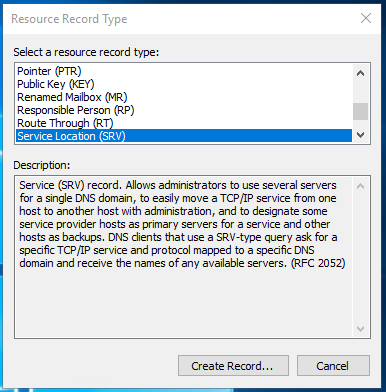
5. Select "Service Location (SRV)" from the window that opens and click "Create Record".
6. On the "New Service Record" screen, information is filled in as follows.

| Field       | Value                   | Description                                           |
| ----------- | ----------------------- | ----------------------------------------------------- |
| Service     | \_arksspr               |                                                       |
| Protocol    | \_tcp                   |                                                       |
| Port Number | 443                     |                                                       |
| Host        | servername.*domain.com* | It is the server where the arksspr role is installed. |

<figure><img src="https://60632999-files.gitbook.io/~/files/v0/b/gitbook-x-prod.appspot.com/o/spaces%2F-MgdlemWm0JI6_ILmafb%2Fuploads%2Fbvi95FgJicTyWh7hKsbg%2Fimage.png?alt=media&amp;token=a1b010b6-4c19-4f40-b61a-1559ac12e1e3" alt=""><figcaption><p>Service Location (SRV)</p></figcaption></figure>

<figure><img src="https://60632999-files.gitbook.io/~/files/v0/b/gitbook-x-prod.appspot.com/o/spaces%2F-MgdlemWm0JI6_ILmafb%2Fuploads%2F1DGo4043fxZLOu6ufSPA%2Fimage.png?alt=media&amp;token=7e4703cf-ab5d-42ca-a516-10172c0709db" alt=""><figcaption><p>New Resource Record</p></figcaption></figure>

{% hint style="success" %}
When more than one **arksspr** server is installed, this process is repeated for each server.
{% endhint %}


# HTTPS Certificate

Prerequisites

## Create Certificate Template for HTTPS Binding

1. Connect to the Certification Server of your Company. If you don't have any CA on your domain You should get suitable https certificate from Enterprise CA or you should create self sign certificate that not recommended.
2. Open the Certification Authority screen and go to the Certificate Templates area.
3. In the Certificate Authority window right click Certificate Templates node, select "Manage".
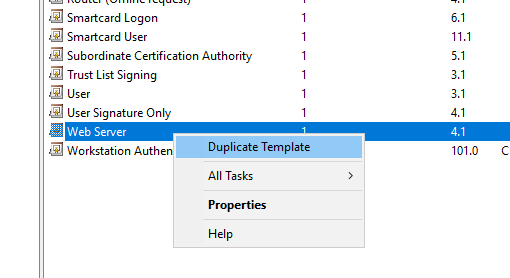
4. Find the Web Server template from the list, right-click on it and select Duplicate Template.

<figure><img src="https://60632999-files.gitbook.io/~/files/v0/b/gitbook-x-prod.appspot.com/o/spaces%2F-MgdlemWm0JI6_ILmafb%2Fuploads%2FjRHLoGtL7r6WLTqXfy3X%2Fimage.png?alt=media&amp;token=8c69f611-65cc-4c10-b5ee-641db3c7f4a6" alt=""><figcaption></figcaption></figure>

4. Make the following settings:
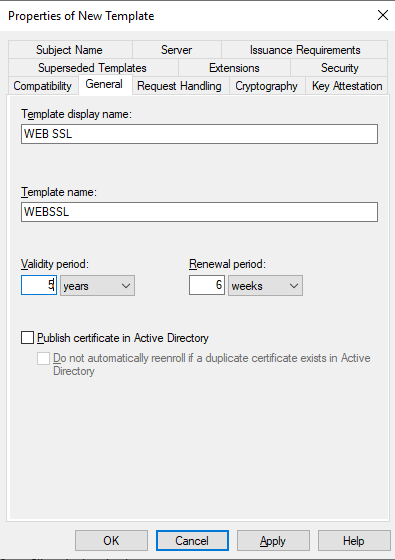
   1. General Tab: Fill the Display Name and Template Name fields,
   2. Request Handling: Select Allow private key to be exported option,
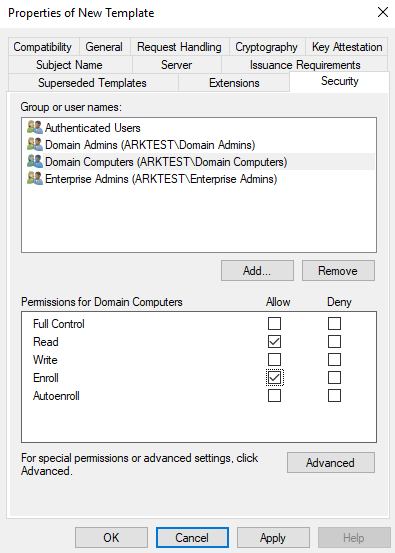
   3. In the Security tab, you must add users and/or computers that can request certificates, and the groups they belong to. In this example Domain Computers added to the list. You should add computer account of the ARKSSPR server. Give computer account enroll right and then click OK.

<figure><img src="https://60632999-files.gitbook.io/~/files/v0/b/gitbook-x-prod.appspot.com/o/spaces%2F-MgdlemWm0JI6_ILmafb%2Fuploads%2FjKdSvGcombJEEgrUFmiu%2Fimage.png?alt=media&amp;token=f750a507-72b6-4367-8234-35144946f51d" alt=""><figcaption><p>Certificate Template Information</p></figcaption></figure>

<figure><img src="https://60632999-files.gitbook.io/~/files/v0/b/gitbook-x-prod.appspot.com/o/spaces%2F-MgdlemWm0JI6_ILmafb%2Fuploads%2FicN7kJMzax4gQn5R4dM9%2Fimage.png?alt=media&amp;token=2e81b62a-0b3e-437c-a611-6a9ecc71b4c8" alt=""><figcaption><p>Private Key Behaviour</p></figcaption></figure>

<figure><img src="https://60632999-files.gitbook.io/~/files/v0/b/gitbook-x-prod.appspot.com/o/spaces%2F-MgdlemWm0JI6_ILmafb%2Fuploads%2FoUi3NY2LQqGhutWOhdos%2Fimage.png?alt=media&amp;token=e749004a-993a-4be0-8840-4efcac4a8941" alt=""><figcaption><p>Security Window</p></figcaption></figure>

5. Click OK to save template and then Close Certificate Templates screen.
6. In the Certificate Authority window right click Certificate Templates node, point New then select "Certificate Template to Issue".
7. Select previously created template then click OK.

## Request HTTPS Certificate

ARKSSPR is a web-based application. Agents installed on computers work by connecting to ARKSSPR web portal over HTTPS protocol.

1. To generate the certificate, certlm.msc is run on the ARKSSPR server.

<figure><img src="https://60632999-files.gitbook.io/~/files/v0/b/gitbook-x-prod.appspot.com/o/spaces%2F-MgdlemWm0JI6_ILmafb%2Fuploads%2FFh3EIcZ4esp35730Cops%2Fimage.png?alt=media&amp;token=01b30730-7cb9-4d99-885b-0ce9dbf4b06b" alt=""><figcaption><p>Local Machine Certificate Store</p></figcaption></figure>

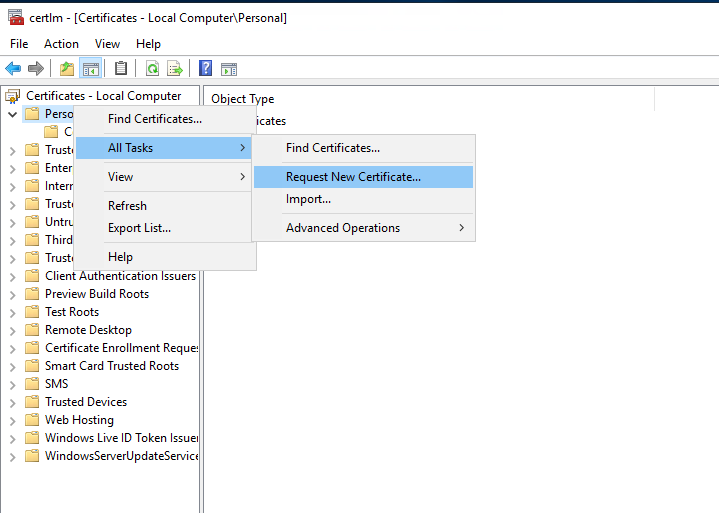
2. Right click on Personnel, point to All Tasks, click Request New Certificate.

<figure><img src="https://60632999-files.gitbook.io/~/files/v0/b/gitbook-x-prod.appspot.com/o/spaces%2F-MgdlemWm0JI6_ILmafb%2Fuploads%2F5noZJ09fzxa6ONGANyos%2Fimage.png?alt=media&amp;token=fb4a9844-19a5-4d7a-b62f-fb428efec4c4" alt=""><figcaption><p>Request New Certificate</p></figcaption></figure>

3. Click next on the Before You Begin screen
4. Click Next on the Select Certificate Enrollment Policy screen,
5. Select the HTTPS Certificate template created in the previous step. This certificate requests some information. This information is the URL address to access the ARKSSPR server. Click on the More Information link.

<figure><img src="https://60632999-files.gitbook.io/~/files/v0/b/gitbook-x-prod.appspot.com/o/spaces%2F-MgdlemWm0JI6_ILmafb%2Fuploads%2FJD62hO7DYlzS9m5X9uyf%2Fimage.png?alt=media&amp;token=c03d54b7-120a-4ddb-bfb9-d6212fad377b" alt=""><figcaption><p>Certificate Enrollment</p></figcaption></figure>

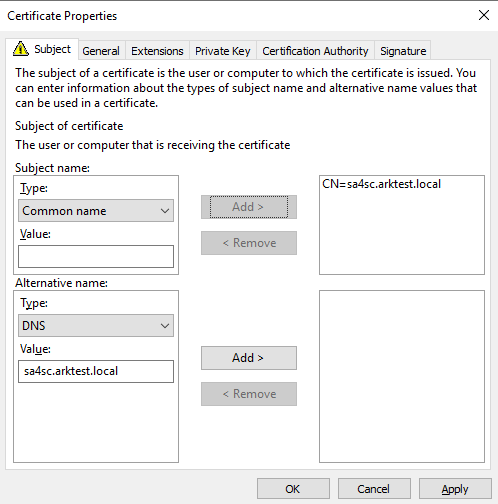
6. Subject Name and Alternative Name fields are filled in on the Subject screen.
   1. Common Name: Server URL address is entered and transferred to the right with the Add button.
   2. DNS: The server URL address is entered and transferred to the right with the Add button.

Create the certificate, Click OK&#x20;

<figure><img src="https://60632999-files.gitbook.io/~/files/v0/b/gitbook-x-prod.appspot.com/o/spaces%2F-MgdlemWm0JI6_ILmafb%2Fuploads%2FIVH3hQ3IWZWCzz0V029s%2Fimage.png?alt=media&amp;token=877e72b5-6a50-4db4-a0e0-ba35cea8d423" alt=""><figcaption><p>Certificate Subject Information</p></figcaption></figure>

7. The Enroll button becomes active on the Request Certificates screen. By clicking this button, the certificate enrollment process is completed. Clicking Finish will end the wizard.


# ARKSSPR Internal Installation

Scope: ARKSSPR 2.0

## Download ARKSSPR Media

You can download ARKSSPR setup files from arksspr.com web page. You must have a valid license to use the product. You can contact <sales@arksspr.com> for the right to use demo or purchase.

<table><thead><tr><th width="179.33333333333331">Setup File</th><th width="157">Download</th><th>Description</th></tr></thead><tbody><tr><td>ARKSSPR Server 1.2 (Retired)</td><td>Not Available</td><td>This package contains Server components.</td></tr><tr><td>ARKSSPR Server 2.0.24 (Retired)</td><td>Not Available</td><td>This package contains Server components.</td></tr><tr><td>ARKSSPR Server 2.0.59 (Retired)</td><td>Not Available</td><td>This package contains Internal and DMZ Server components.</td></tr><tr><td>ARKSSPR Server 2.0.61 (Retired)</td><td>Not Available</td><td>This package contains Internal and DMZ Server components.<br>Minor Bug-Fixes<br>Login page has been changed</td></tr><tr><td>ARKSSPR Server 2.0.65 (Retired)</td><td>Not Available</td><td>Minor Bug-Fixes</td></tr><tr><td>ARKSSPR Server 2.0.66 (Retired)</td><td>Not Available</td><td><p>Delegasyon ile başkası adına parola sıfırlama ve hesap kilidi açma,<br>CTRL+ALT+Delete ekranında CredentialProvider sayesinde oturum açmadan parola sıfırlama,</p><p>Parola süresi hatırlatma,<br>External Connector sayesinde parola sıfırlama ve hesap kilidi açma işlemlerinde harici yöntemler kullanma.</p><p>SMS le parola sıfırlama talebi gönderilmesi gibi.</p></td></tr><tr><td>ARKSSPR Server 2.0.67 (Retired)</td><td>Not Available</td><td>UI Improvements<br>Minor Bug-Fixes</td></tr><tr><td>ARKSSPR Server 2.0.70</td><td>Not Available</td><td><p>Spelling errors have been fixed.</p><p>The problem of being able to go to a role-based URL by entering a URL that should not be entered has been fixed.</p><p>The problem with delegation authorization has been fixed.</p><p>The problem of the user not being able to get admin authority from the authority given to the group where the DC is in 3 parts in the domain has been fixed.</p><p>The error in logging in with UPN has been fixed.</p><p>Corrections have been made in the mobile view.</p><p>Minor bugfix in Blacklist</p><p>Blacklist Regex feature has been added.</p><p>A study has been made to ensure that the + sign is equal to 00 in the phone number entry.</p><p>Enter has been processed and displayed in the Password Reset and Change Information Message section.</p></td></tr><tr><td>ARKSSPR Server 2.0.71</td><td>Not Available</td><td></td></tr><tr><td>ARKSSPR Server 2.0.72</td><td>Not Available</td><td><p>Regex Template creation added. </p><p>Support for international phone numbers has been provided. </p><p>Delegation role problem has been fixed. </p><p>Phone Number formats have been transferred to JSON.</p></td></tr><tr><td>ARKSSPR Server 2.0.73</td><td>Not Available</td><td></td></tr><tr><td>ARKSSPR Server 2.0.74</td><td>Not Available</td><td></td></tr><tr><td>2.0.75</td><td>Not Available</td><td><p>Blacklists are now available for download.</p><p>A new endpoint has been added to the external API for password history checks.</p><p>The "Last Password Reset Set" feature has been added. The daily password reset limit defined in the AD policy will now be retrieved by the SSPR application and applied accordingly for the user.</p></td></tr><tr><td>2.0.76</td><td>Download Now</td><td><p>External API unlock support</p><p>Integration support with external software through the connector structure</p></td></tr><tr><td>2.0.77</td><td>Download Now</td><td>Multi-Server licensing issues fixed</td></tr><tr><td>2.1.0</td><td><a href="https://dl.easy2patch.com/dl/arksoft/arksspr/2.1.0/arksspr-setup-server-2.1.0.msi">Download Now</a></td><td>Upgraded to .Net 10</td></tr></tbody></table>


# Installing Microsoft SQL Server

Prerequisites

SQL Setup consists of 2 stages. In the first stage, SQL Server installation is performed. After SQL installation, SSMS (SQL Server Management Studio) is installed. Read [SQL Server Requirements](/master/planning/sql-server-requirements) for supported SQL Server versions. It is important for a healthy and safe operation that the SQL Server software is at the latest update level.&#x20;

## Download

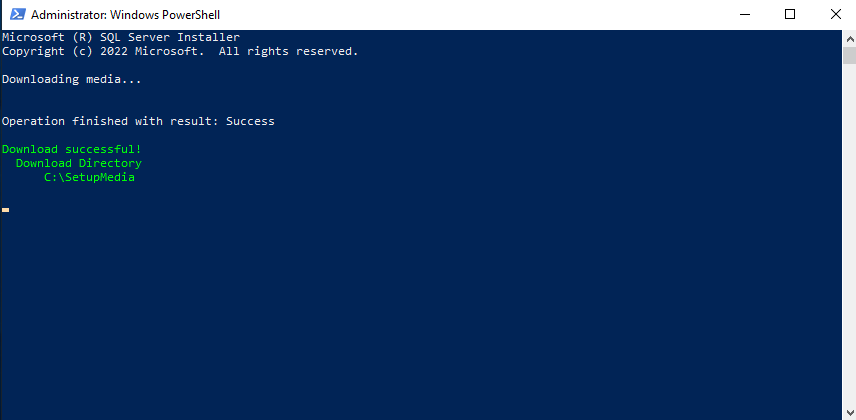
This article describes the installation of SQL Server 2022 Express edition. It can be downloaded from the SQL Server 2022 Express Edition Download page. This file is the express installation file and it needs an internet connection on the server where it is run. If the server to be installed does not have internet access, it is run on a computer with internet access and the offline installation file can be obtained from this computer. In the example below, the setup file is downloaded to the folder named SetupMedia on the C drive. The setup file can be run with the following parameters.

```
C:\SetupMedia\SQL2022-SSEI-Expr.exe /Action=Download /MediaType=Advanced /MediaPath=C:\SetupMedia /HideProgressBar /Quiet /Language=en-US
```

<figure><img src="https://60632999-files.gitbook.io/~/files/v0/b/gitbook-x-prod.appspot.com/o/spaces%2F-MgdlemWm0JI6_ILmafb%2Fuploads%2FquZOevvj6kqN5wz4SNcP%2Fimage.png?alt=media&amp;token=4b1783bc-40b1-4eea-8daf-a8864ca04aff" alt=""><figcaption><p>SQL Server Express Download Successful screen</p></figcaption></figure>

## Setup SQL Server 2022 Express Edition

1. After the SQL Server express setup file is downloaded, run setup file with the "Run As Administrator" command.
2. Confirm the Extract folder by clicking OK. You can optionally show a different folder path.

<figure><img src="https://60632999-files.gitbook.io/~/files/v0/b/gitbook-x-prod.appspot.com/o/spaces%2F-MgdlemWm0JI6_ILmafb%2Fuploads%2FvQg2oWABif99TN0pTh8P%2Fimage.png?alt=media&amp;token=68ffb80c-dd9d-48a5-9dff-1407668ededa" alt=""><figcaption><p>Extract Folder</p></figcaption></figure>

3. Click "New SQL Server standalone installation" on the SQL Server 2022 Installation Center screen.

<figure><img src="https://60632999-files.gitbook.io/~/files/v0/b/gitbook-x-prod.appspot.com/o/spaces%2F-MgdlemWm0JI6_ILmafb%2Fuploads%2FaRWO0L0hyI7g8866Fy35%2Fimage.png?alt=media&amp;token=c35cfd1b-4614-4e3b-aa0a-3f9abed75f8a" alt=""><figcaption><p>New Installation</p></figcaption></figure>

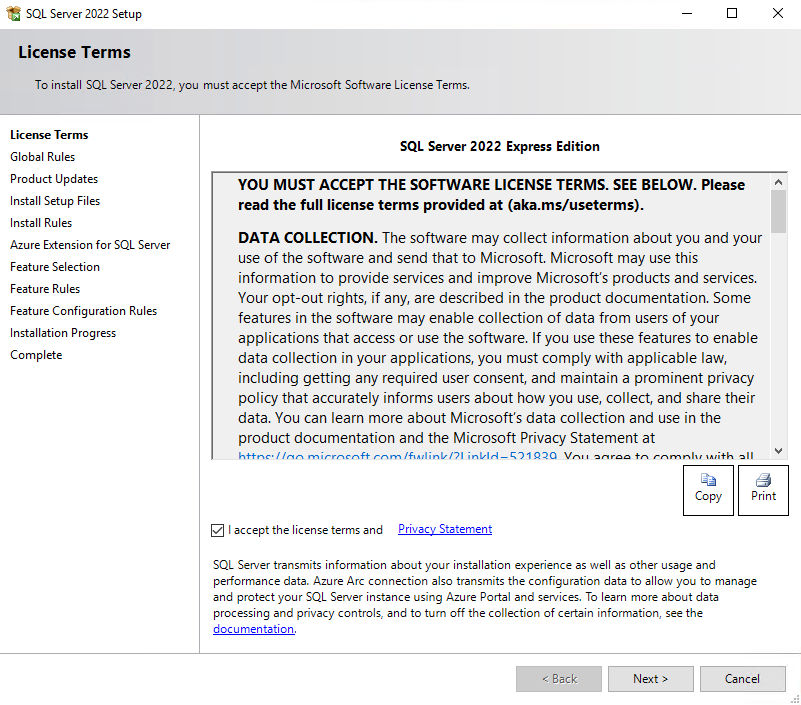
4. Accept the license terms and click Next.

<figure><img src="https://60632999-files.gitbook.io/~/files/v0/b/gitbook-x-prod.appspot.com/o/spaces%2F-MgdlemWm0JI6_ILmafb%2Fuploads%2FNnLkkyC4pEsIY6znPpaa%2Fimage.png?alt=media&amp;token=078dabf6-8b1f-4d08-8724-cbe7af802370" alt=""><figcaption></figcaption></figure>

5. Deselect the Azure Extension for SQL Server option. Click Next

<figure><img src="https://60632999-files.gitbook.io/~/files/v0/b/gitbook-x-prod.appspot.com/o/spaces%2F-MgdlemWm0JI6_ILmafb%2Fuploads%2Fu1MIdAyKfKCTKecF8Io0%2Fimage.png?alt=media&amp;token=f9524e9e-8ae5-44d3-93b3-4b8c3833888e" alt=""><figcaption></figcaption></figure>

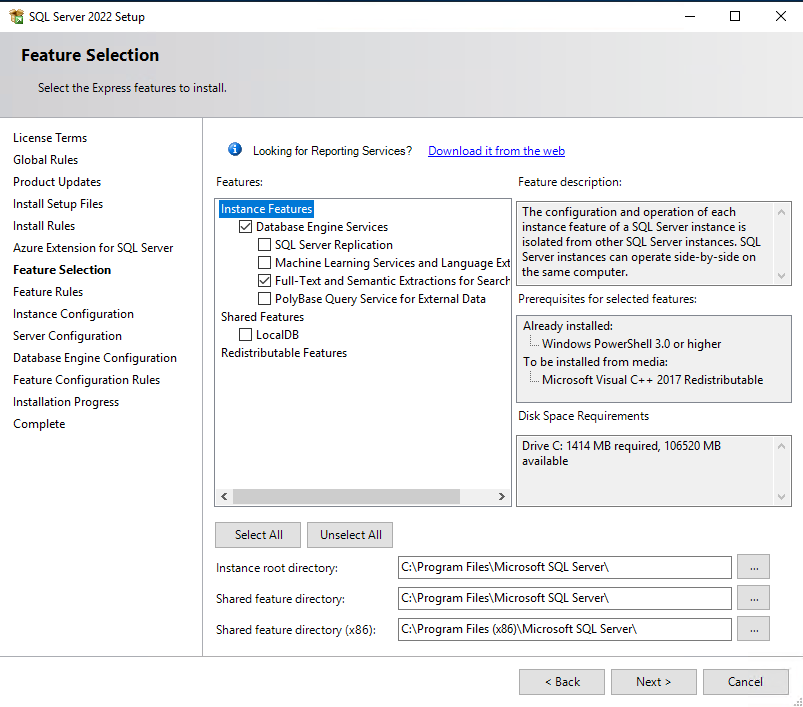
6. On the Feature Selection screen, the Database Engine and Full Text options remain selected. Others do not need to be selected. Click Next.

<figure><img src="https://60632999-files.gitbook.io/~/files/v0/b/gitbook-x-prod.appspot.com/o/spaces%2F-MgdlemWm0JI6_ILmafb%2Fuploads%2F84p7sAnplrtYmQZwkqgC%2Fimage.png?alt=media&amp;token=c9017417-d51b-425e-8abf-330569022880" alt=""><figcaption><p>Feature Selection</p></figcaption></figure>

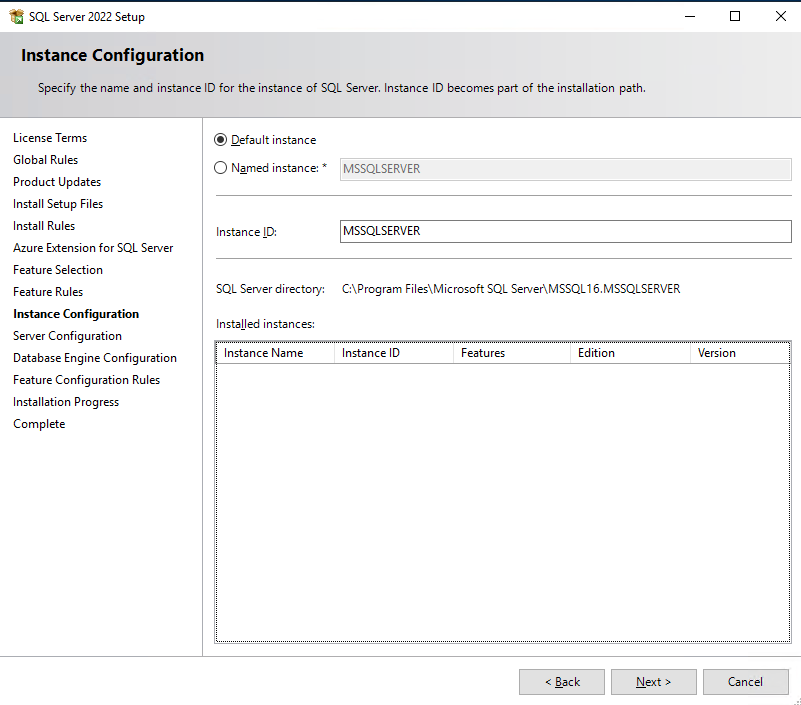
7. Default Instance is selected on the Instance Configuration screen. optionally, a different name can be specified, the default SQLEXPRESS name can be accepted.
   * Maximum Length: In SQL Server 2008 and later, the maximum length of an instance name is 16 characters. However, in earlier versions such as SQL Server 2000 and 2005, the maximum length is 8 characters.&#x20;
   * Character Restrictions: Instance names can only contain letters (A-Z, a-z), numbers (0-9) and the underscore (\_) character. Other special characters, spaces, or punctuation cannot be used.&#x20;
   * Uniqueness: SQL Server instance names must be unique to represent different instances on the same computer. Using the same instance name can cause conflicts and runtime issues.&#x20;
   * Case Sensitivity: SQL Server instance names are case-sensitive by default. That is, different case combinations such as "Instance1" and "instance1" represent different instances. However, in a case-insensitive installation, the instance names are considered the same.

<figure><img src="https://60632999-files.gitbook.io/~/files/v0/b/gitbook-x-prod.appspot.com/o/spaces%2F-MgdlemWm0JI6_ILmafb%2Fuploads%2FBPiEsx1NJtZiKotBOVel%2Fimage.png?alt=media&amp;token=755d6d7a-6dd0-45ff-9c0a-599fb232785a" alt=""><figcaption></figcaption></figure>

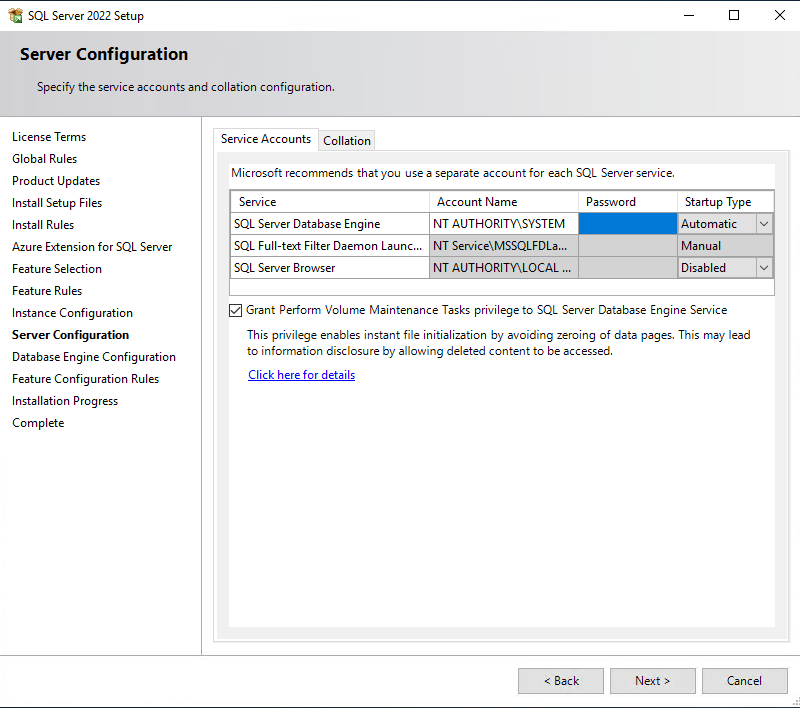
8. Service accounts are specified on the Server Configuration screen. Default accounts can be used, or a GMSA or regular service account can be selected and entered in the Account Name field. If an account is entered, enter the password for this account in the Password field.
   * Select the corresponding Check box to grant the right "Grant Perform Volume Maintenance Task" to the SQL Server service account.
   * Switch to the Collation tab.
   * Collation value for Database Engine should be "SQL\_Latin1\_General\_CP1\_CI\_AS". If there is a different Collation instead of this value, the operating system region values should be checked, changed to United States - English and continued from the screen after the restart.
   * Click Next.

<figure><img src="https://60632999-files.gitbook.io/~/files/v0/b/gitbook-x-prod.appspot.com/o/spaces%2F-MgdlemWm0JI6_ILmafb%2Fuploads%2FyAgenEZhYHvESMkFWYdn%2Fimage.png?alt=media&amp;token=ebab849f-412c-48ea-bf36-0d877a807174" alt=""><figcaption><p>Service Accounts Screen</p></figcaption></figure>

<figure><img src="https://60632999-files.gitbook.io/~/files/v0/b/gitbook-x-prod.appspot.com/o/spaces%2F-MgdlemWm0JI6_ILmafb%2Fuploads%2Fxf1xyQgm5h961BTs2xKf%2Fimage.png?alt=media&amp;token=fd1e8ec6-6458-4625-babf-433d90c47856" alt=""><figcaption><p>Collation Screen</p></figcaption></figure>

9. On the Database Engine Configuration screen, apply the following settings.
   * In the Server Configuration tab Windows Authentication Mode is the recommended structure and is configured as such. Optionally, Mixed Authentication can be selected, but in this case, the security of the sa and local accounts must be followed separately.
   * Specify the users and/or groups that will have sysadmin roles during installation on the SQL server using the Add Current User and/or Add buttons.
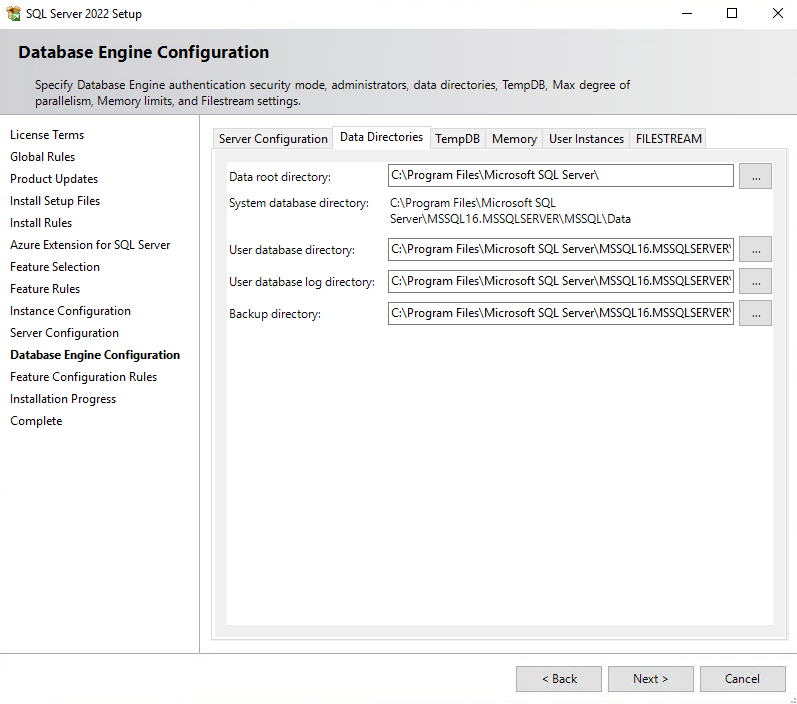
   * In the Data Directories tab, Default Path settings are made for SQL database, log and backup files. Enter a drive and folder path on the operating system in these fields.
   * In the TempDB tab, the location of the database, database and log files used by the SQL server for temp purposes is determined. The appropriate driver and path information is entered in these fields. It can be left as default.

<figure><img src="https://60632999-files.gitbook.io/~/files/v0/b/gitbook-x-prod.appspot.com/o/spaces%2F-MgdlemWm0JI6_ILmafb%2Fuploads%2FMtJ4mzb8jNoQQlD53J2v%2Fimage.png?alt=media&amp;token=c1df59da-e883-48af-88a3-aefe7f19182c" alt=""><figcaption><p>Server Configuration</p></figcaption></figure>

<figure><img src="https://60632999-files.gitbook.io/~/files/v0/b/gitbook-x-prod.appspot.com/o/spaces%2F-MgdlemWm0JI6_ILmafb%2Fuploads%2FZFZrvixMDIfQwZu14bLY%2Fimage.png?alt=media&amp;token=63f0b427-32e4-41a3-970d-32e670c78d77" alt=""><figcaption><p>Data Directories Screen</p></figcaption></figure>

<figure><img src="https://60632999-files.gitbook.io/~/files/v0/b/gitbook-x-prod.appspot.com/o/spaces%2F-MgdlemWm0JI6_ILmafb%2Fuploads%2F57hBfM9FCL5TgetRpXFx%2Fimage.png?alt=media&amp;token=0301ff83-4000-44c1-b317-5206f65e03a4" alt=""><figcaption><p>TempDB Screen</p></figcaption></figure>

10. Installation will start immediately, after clicking Next. At the end of setup click Close.

## Download SSMS (SQL Server Management Studio)

SSMS is the interface used for SQL Server management. This interface can be downloaded from the Microsoft Download Center. "<https://aka.ms/ssmsfullsetup>" can always be used to download the latest version. Use this address and download the [SSMS-Setup-ENU.exe](https://aka.ms/ssmsfullsetup) file.

## Installing SSMS

1. After the SQL Server SSMS Setup file is downloaded, run setup file with the "Run As Administrator" command.
2. In the setup screen Click Install button to install SSMS

<figure><img src="https://60632999-files.gitbook.io/~/files/v0/b/gitbook-x-prod.appspot.com/o/spaces%2F-MgdlemWm0JI6_ILmafb%2Fuploads%2Fi2PzZoQVE9nVEe7pDKof%2Fimage.png?alt=media&amp;token=13cbdab1-a60c-4eb3-ad04-9dd166c31c2c" alt=""><figcaption></figcaption></figure>

3. At the end of setup click Finish to close setup screen, or click Restart button to restart computer. Some installations finishes with restart option.

<figure><img src="https://60632999-files.gitbook.io/~/files/v0/b/gitbook-x-prod.appspot.com/o/spaces%2F-MgdlemWm0JI6_ILmafb%2Fuploads%2FwUELYvLqJ8KeAdtZTgtk%2Fimage.png?alt=media&amp;token=0dfc7ecd-534e-4a4d-a9f6-b9c939a09bdf" alt=""><figcaption></figcaption></figure>


# Internet Information Service Installation

Prerequisites

ARKSSPR Server role needs IIS service to run. All agents communicate with the server over the TCP 443 (HTTPS) protocol. The site should be secured with a valid HTTPS certificate.&#x20;

The necessary IIS components and the [PowerShell script](#powershell-komutu) required for the installation of these components are given below.&#x20;

## Powershell Command

You should open Powershell screen with RunAs Administrators right. Paste powershell command in this screen.

{% code title="InstallIIS.ps1" overflow="wrap" lineNumbers="true" %}

```powershell
Add-WindowsFeature Web-Server,Web-WebServer,Web-Common-Http,Web-Default-Doc,Web-Dir-Browsing,Web-Http-Errors,Web-Static-Content,Web-Http-Redirect,Web-Health,Web-Http-Logging,Web-Custom-Logging,Web-Log-Libraries,Web-Request-Monitor,Web-Performance,Web-Stat-Compression,Web-Security,Web-Filtering,Web-Basic-Auth,Web-Windows-Auth,Web-Mgmt-Tools,Web-Mgmt-Console,Web-Mgmt-Compat,Web-Metabase
```

{% endcode %}


# .NET Core 10.0 Download and Install

Prerequisites

Microsoft ASP.Net Core Runtime 10.0.0 package is required for the web application to work. The ASP.NET Core Runtime enables you to run existing web/server applications. On Windows, we recommend installing the Hosting Bundle, which includes the .NET Runtime and IIS support. Any version above (version **10.x.x**), at least this version, can be installed. For the Microsoft **ASP.Net Core Hosting Bundle 10.0.0** download link, you should visit the [**Microsoft Download Center**](https://dotnet.microsoft.com/en-us/download/dotnet/10.0) page. You should download [**Hosting Bundle**](https://dotnet.microsoft.com/en-us/download/dotnet/thank-you/runtime-aspnetcore-10.0.0-windows-hosting-bundle-installer) package.

To install hosting bundle package follow the instructions:

1. Run it by double-clicking on the setup file or using the "**Run As Administrator**" command as recommended.
2. The license agreement is accepted and click Install.
3. At the end of installation click Close.

<figure><img src="https://60632999-files.gitbook.io/~/files/v0/b/gitbook-x-prod.appspot.com/o/spaces%2F-MgdlemWm0JI6_ILmafb%2Fuploads%2FRI00LbEo2IY5tc5cpYM2%2Fimage.png?alt=media&amp;token=22b00d73-2ae3-4b99-b3b5-9073971cf041" alt=""><figcaption></figcaption></figure>


# .Net Framework 4.7.2 Download and Install

Microsoft .Net Framework 4.7.2 framework package is required for the server service to work. Any version above, at least this version, can be installed. For the .Net Framework 4.7.2 download link, you should visit the [Microsoft Download Center](https://dotnet.microsoft.com/en-us/download/dotnet-framework/net472) (<http://go.microsoft.com/fwlink/?linkid=863265>) page.

Net Framework 4.7.2 is already installed on Windows Server 2019 and higher operating systems. In Windows Server 2016 systems, if the higher version NetFramework is not installed, the Framework version can be upgraded by following the steps below.

1. Run it by double-clicking on the setup file or using the "Run As Administrator" command as recommended.
2. The license agreement is accepted and click next.
3. At the end of installation click Finish.

<table><thead><tr><th width="283">Windows</th><th width="295.3333333333333">.NET Framework Version</th><th>OS Version</th></tr></thead><tbody><tr><td>Windows Server 2012 R2</td><td>.NET Framework 4.5</td><td>6.3</td></tr><tr><td>Windows Server 2016</td><td>.NET Framework 4.6</td><td>1607</td></tr><tr><td>Windows Server 2019</td><td>.NET Framework 4.7</td><td>1809</td></tr><tr><td>Windows Server 2022</td><td>.NET Framework 4.8</td><td>21H2</td></tr></tbody></table>


# Installation

## Installation of Internal ARKSSPR Server

1. Run ARKSSPR Setup with RunAs Administrators privilege in cmd.exe console.
2. Click Next on the welcome screen,
3. Confirm the installation directory by clicking Next,
4. Start the installation by pressing the Install button,

The setup process checks for IIS requirements. If there is a missing requirement, the installation is interrupted and closed.


# First Time Wizard

If you are installing or upgrading the ARKSSPR software for the first time, you must provide the initial settings with FTW (First Time Wizard) for the system to be operational.

FTW\.exe runs automatically after the setup is finished. By default, the FTW application is located under C:\Program Files\ARKSSPR\FTW. If the installation address is changed, you can go to the FTW folder in the installation directory. It is necessary to run the application with the "Run As Administrators" command.

The first of the prerequisites for FTW is that you need to run it with a user with sysadmin rights on the SQL Server server.

### Encryption

The item "Encrypting the settings" on the welcome screen is important. When this is selected, all information in the appsettings.json file and all user passwords added to the Database are encrypted and saved. Password entry is made at 3 points.

1. If SQL Authentication is used, Connection String is saved encrypted,
2. If an LDAP Account is used, the password of the account is encrypted,
3. The root account password is encrypted and stored.

### Installation  Type

If it is being installed for the first time, "New Installation" is selected.

### IIS Settings

The address where the SSPR web application will be published is entered in the Host Name field. ex: sspr.domain.com. If an SSL Certificate is available and installed on the system, Enable SSL Binding is selected and the appropriate certificate is selected from the Select Certificate menu. LocalSystem or an appropriate user account can be logged in for the Application Pool.

### Database

On the Database screen, the name of the SQL Server server and the Instance name are entered. For example: SERVERNAME, SERVERNAME\INSTANCENAME, SERVERNAME,PORT etc.

Database name and path information can be changed. If SQL Authentication Mode is used, the username and password information required to connect to SQL is entered by selecting Enable SQL Authentication.

### Active Directory

On the Active Directory screen, the necessary information to connect to the current environment is entered. The server name or, as recommended, domain FQDN information is entered in the Domain FQDN field. For example: domain.com.

Secure LDAP connection is recommended. If the system supports it, Secure is selected and port information is entered.

User information that has the authority to connect to the LDAP system, read phone attributes, reset passwords and unlock accounts is entered in the Authentication field. If this field is left blank, the IIS Application Pool account is used for these operations.

### Administrators

The application has a root user. This user is the account that allows basic settings such as defining an authorized account to the system, LDAP connection and SMS settings.

On the Administrators screen, a password, provided that it is complex, is created for the root account. The password must be at least 8 characters, contain at least 3 of the following sets of lower/uppercase letters, numbers, and special characters.


# IIS Configuration

After all the installations are completed, it is useful to check some settings on IIS.

## Application Pool Identity

By default it is installed as LocalSystem. Due to security requirements, this user account can be used as ApplicationPoolIdentity, service account or GMSA. The best recommended configuration is to create a GMSA account and use this account for the Application Pool.

When this account is changed the following permissions need to be reviewed.

1. db\_owner (dbo) access to the database on SQL,
2. If a separate account will not be used for LDAP connections;&#x20;
   * Password Reset,&#x20;
   * Account unlocking&#x20;
   * Reading for the Active Directory Attribute where the phone is registered,
   * Replicate Directory Changes

### SQL Server Permissions

\[IIS AppPool\ARKSSPR] is the name of Application Pool name in ARKSSPR.

```sql
--Change db_owner for ApplicationPoolIdentity
USE [master]
GO
CREATE LOGIN [IIS AppPool\ARKSSPR] FROM WINDOWS WITH DEFAULT_DATABASE=[master], DEFAULT_LANGUAGE=[us_english]
GO
USE [ARKSSPR]
GO
ALTER AUTHORIZATION ON SCHEMA::[db_owner] TO [IIS AppPool\ARKSSPR]
GO
```

Change Domain, GMSA$ and Database Names from script.

<pre class="language-sql"><code class="lang-sql"><strong>--Change db_owner for GMSA Account
</strong><strong>USE [master]
</strong>GO
CREATE LOGIN [DOMAIN\GMSA$] FROM WINDOWS WITH DEFAULT_DATABASE=[master], DEFAULT_LANGUAGE=[us_english]
GO
USE [ARKSSPR]
GO
ALTER AUTHORIZATION ON SCHEMA::[db_owner] TO [DOMAIN\GMSA$]
GO
</code></pre>

## HTTP/S Bindings and Certificate

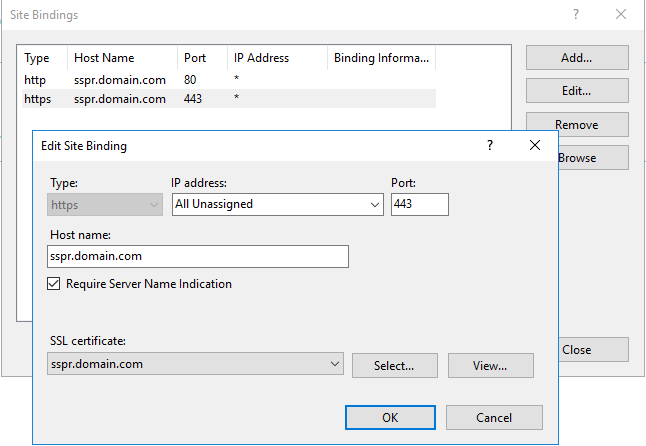
The address that users will access must be set on the site bindings screen. If only ARKSSPR will be published via the server, it is not mandatory to enter bindings (Host name, IP Address) information. HTTP access is supported in SSL Offloading scenarios.&#x20;

The DMZ ARKSSPR Server must resolve the FQDN name in the address from which it will connect to this server.

If you want to broadcast ARKSSPR via HTTPS on this server, it is useful to check the following 2 settings.

1. HTTPS redirection with HSTS
2. Trusted SSL Certificate covering FQDN or wildcard

<figure><img src="https://60632999-files.gitbook.io/~/files/v0/b/gitbook-x-prod.appspot.com/o/spaces%2F-MgdlemWm0JI6_ILmafb%2Fuploads%2FHPEnNiPUbyeWeZchyqYW%2Fimage.png?alt=media&amp;token=88a96f29-0491-49e0-b4c0-65a37d97e87f" alt=""><figcaption></figcaption></figure>


# Initial Configuration

## Root Login

The address given as binding is entered into the address bar of a current web browser that supports HTML5.

For the first login, you must log in with the root user.

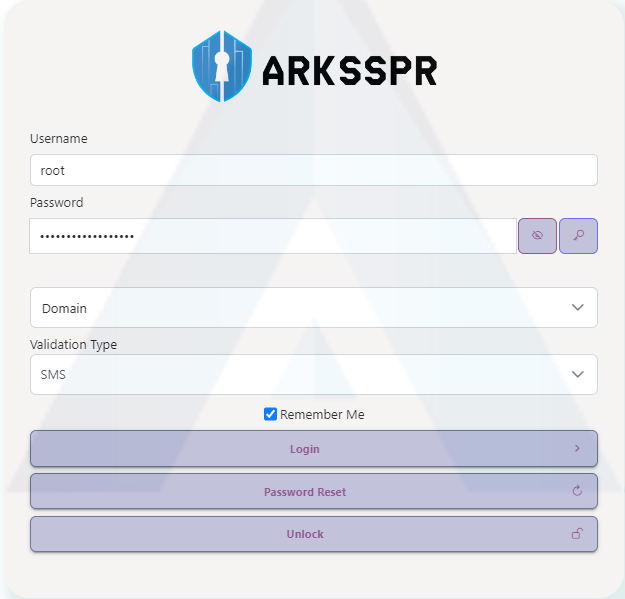
<figure><img src="https://60632999-files.gitbook.io/~/files/v0/b/gitbook-x-prod.appspot.com/o/spaces%2F-MgdlemWm0JI6_ILmafb%2Fuploads%2FlV21MlpeXgZntqsz5T9x%2Fimage.png?alt=media&amp;token=0762e0ae-2fee-4821-8bcc-cb387b08a35a" alt=""><figcaption></figcaption></figure>

1. Users log in to the user portal with the Login button. If the user wants to change her password via ARKSSPR, user must log in to ARKSSPR.
2. With the Password Reset button, the user can reset his own password.&#x20;
3. With the unlock button, the user can unlock his/her locked account.

## LDAP Settings

Active Directory connection should be arranged on the LDAP settings screen and settings such as mobile phone attribute and secondary username attribute should be made. Additionally, if there is more than one Active Directory in the environment, login must be made from this screen. See: [LDAP Settings](/master/administration/settings/general-settings/ldap-settings).

## SMS Settings

In ARKSSPR, SMS is mandatory for all logins other than root. SMS settings should be made based on the documents provided by the corporate SMS service provider. See: [SMS Settings](/master/administration/settings/general-settings/sms-settings).

## License Management

ARKSSPR is a product that must be licensed. To activate the license, you must contact <sales@arksoft.com.tr> e-mail address. The MachineID field on the License Management screen must be shared with the Arksoft Sales team. See: [License Management](/master/administration/license-management).


# ARKSSPR DMZ Installation

DMZ Zone installation should be made for use in ARKSSPR's Internet access. This structure is the trusted and recommended scenario because administrative activities cannot be performed and there is no direct access to the internal network.


# Internet Information Service Installation

Prerequisites

ARKSSPR Server role needs IIS service to run. All agents communicate with the server over the TCP 443 (HTTPS) protocol. The site must be secured with a valid HTTPS certificate.&#x20;

The necessary IIS components and the [PowerShell script](#powershell-komutu) required for the installation of these components are given below.&#x20;

## Powershell komutu

You should open Powershell screen with RunAs Administrators right. Paste powershell command in this screen.

{% code title="InstallIIS.ps1" overflow="wrap" lineNumbers="true" %}

```powershell
Add-WindowsFeature Web-Server,Web-WebServer,Web-Common-Http,Web-Default-Doc,Web-Dir-Browsing,Web-Http-Errors,Web-Static-Content,Web-Http-Redirect,Web-Health,Web-Http-Logging,Web-Custom-Logging,Web-Log-Libraries,Web-Request-Monitor,Web-Performance,Web-Stat-Compression,Web-Security,Web-Filtering,Web-Basic-Auth,Web-Windows-Auth,Web-Mgmt-Tools,Web-Mgmt-Console,Web-Mgmt-Compat,Web-Metabase
```

{% endcode %}


# .NET Core 10.0 Download and Install

Prerequisites

Microsoft ASP.Net Core Runtime 10.0.0 package is required for the web application to work. The ASP.NET Core Runtime enables you to run existing web/server applications. On Windows, we recommend installing the Hosting Bundle, which includes the .NET Runtime and IIS support. Any version above (version **10.x.x**), at least this version, can be installed. For the Microsoft **ASP.Net Core Hosting Bundle 10.0.0** download link, you should visit the [**Microsoft Download Center**](https://dotnet.microsoft.com/en-us/download/dotnet/10.0) page. You should download [**Hosting Bundle**](https://dotnet.microsoft.com/en-us/download/dotnet/thank-you/runtime-aspnetcore-10.0.0-windows-hosting-bundle-installer) package.

To install hosting bundle package follow the instructions:

1. Run it by double-clicking on the setup file or using the "**Run As Administrator**" command as recommended.
2. The license agreement is accepted and click Install.
3. At the end of installation click Close.

<figure><img src="https://60632999-files.gitbook.io/~/files/v0/b/gitbook-x-prod.appspot.com/o/spaces%2F-MgdlemWm0JI6_ILmafb%2Fuploads%2FpxuMp55aJx5BBm4fojkh%2Fimage.png?alt=media&amp;token=5a2562e9-f17b-4a5e-b8e9-7093bba1f9e6" alt=""><figcaption></figcaption></figure>


# Installing ARKSSPR DMZ Installation

After the ARKSSPR Internal installation is completed, the DMZ zone ARKSSPR installation is performed with the DMZ installation file located in the installation directory.

By default, this file is located in **C:\Program Files\ARKSSPR\DMZ**.

The application is installed by running it with local Administrators group privileges.

After the installation is completed, the steps in the Initial Configuration section are applied.


# IIS Configuration

After all the installations are completed, it is useful to check some settings on IIS.

## HTTP/S Bindings and Certificate

The address that users will access must be set on the site bindings screen. If only ARKSSPR will be published via the server, it is not mandatory to enter bindings (Host name, IP Address) information. HTTP (TCP/80 by default) access is supported in SSL Offloading scenarios.&#x20;

If you want to broadcast ARKSSPR via HTTPS on this server, it is useful to check the following 2 settings.

1. HTTPS redirection with HSTS
2. Trusted SSL Certificate covering FQDN or wildcard

<figure><img src="https://60632999-files.gitbook.io/~/files/v0/b/gitbook-x-prod.appspot.com/o/spaces%2F-MgdlemWm0JI6_ILmafb%2Fuploads%2FHPEnNiPUbyeWeZchyqYW%2Fimage.png?alt=media&amp;token=88a96f29-0491-49e0-b4c0-65a37d97e87f" alt=""><figcaption></figcaption></figure>


# Initial Configuration

## Root Login

The address given as binding is entered into the address bar of a current web browser that supports HTML5.

For the first login, you must log in with the **root** user with **root** password.

<figure><img src="https://60632999-files.gitbook.io/~/files/v0/b/gitbook-x-prod.appspot.com/o/spaces%2F-MgdlemWm0JI6_ILmafb%2Fuploads%2FNGBolmpv2NZgDpsI95aF%2Fimage.png?alt=media&amp;token=574486c6-2aad-43fc-9bfa-65afd2344dbc" alt=""><figcaption></figcaption></figure>

When logging in with the root user for the first time, only the address of the Internal ARKSSPR server must be entered.

After this address is entered, the system will pull all information from the Internal ARKSSPR server and allow entry. It is important to perform name resolution of the internal address to be written here. If necessary, it should be added to the hosts file.

<figure><img src="https://60632999-files.gitbook.io/~/files/v0/b/gitbook-x-prod.appspot.com/o/spaces%2F-MgdlemWm0JI6_ILmafb%2Fuploads%2FkWfI4j2nO36d3B5yQN8Q%2Fimage.png?alt=media&amp;token=0547fb85-a5cd-4b97-bc8d-c26f21a53c31" alt=""><figcaption></figcaption></figure>

The most important security measure of DMZ Installation is that when a user who is a member of the ARKSSPR Administrators role logs into the system via DMZ, it acts as an unauthorized user. Administrative operations cannot be performed via DMZ setup.


# ARKSSPR User Guide


# HOME PAGE

<figure><img src="https://60632999-files.gitbook.io/~/files/v0/b/gitbook-x-prod.appspot.com/o/spaces%2F-MgdlemWm0JI6_ILmafb%2Fuploads%2FJmdYhUNCXBF8rhSiVcXa%2Fimage.png?alt=media&amp;token=9dc87ded-dd1d-46b8-8c3f-8328783d6c2f" alt=""><figcaption></figcaption></figure>

{% content-ref url="/spaces/-MgdlemWm0JI6\_ILmafb/pages/JJkvQjnsOP7IrjZUZFW2" %}
[Ticket](/master/arksspr-user-guide/home-page/ticket)
{% endcontent-ref %}

{% content-ref url="/spaces/-MgdlemWm0JI6\_ILmafb/pages/pdrjyQ6dZpwh758T0dED" %}
[Password Reset](/master/arksspr-user-guide/home-page/password-reset)
{% endcontent-ref %}

{% content-ref url="/spaces/-MgdlemWm0JI6\_ILmafb/pages/jREQjkbDAV2YK2oyZFZC" %}
[Unlock Account](/master/arksspr-user-guide/home-page/unlock-account)
{% endcontent-ref %}

{% content-ref url="/spaces/-MgdlemWm0JI6\_ILmafb/pages/4zLiWg8JqElStevLfkrV" %}
[Remember User Name](/master/arksspr-user-guide/home-page/remember-user-name)
{% endcontent-ref %}

{% content-ref url="/spaces/-MgdlemWm0JI6\_ILmafb/pages/qmBQUyQQlxEKFyl4Cr1d" %}
[Language](/master/arksspr-user-guide/home-page/language)
{% endcontent-ref %}


# Ticket

The **Create Ticket** page allows users to submit support requests to the Help Desk team.

After completing the required information, the support request is created and forwarded to the system administrators or Help Desk team.

<figure><img src="https://60632999-files.gitbook.io/~/files/v0/b/gitbook-x-prod.appspot.com/o/spaces%2F-MgdlemWm0JI6_ILmafb%2Fuploads%2F7lU5HqrzKMkQqXtP4J13%2Fimage.png?alt=media&amp;token=925729bc-3480-4bd6-afd0-3ab41b9768e9" alt=""><figcaption></figcaption></figure>

#### Fields

* **Subject:** Specifies the category of the support request.
* **Title:** Specifies the title of the support request.
* **Description:** Provides detailed information about the issue or request.
* **Username and Surname:** Specifies the name of the user creating the request.
* **Communication Type:** Specifies the preferred contact method.
  * **Telephone Number:** Uses a phone number for communication.
  * **Email:** Uses an email address for communication.
* **Captcha:** Verifies that the request is submitted by a legitimate user.

After completing all required fields, select **Save** to submit the support request. Select **Back** to return to the previous page.


# Password Reset

The Password Reset feature allows users to reset their password without knowing their current password by completing the required verification process.

<figure><img src="https://60632999-files.gitbook.io/~/files/v0/b/gitbook-x-prod.appspot.com/o/spaces%2F-MgdlemWm0JI6_ILmafb%2Fuploads%2FCNmcghHuFhMlyuWZRrep%2Fimage.png?alt=media&amp;token=6c44b6d5-7573-44c7-86e0-eb9b6a6d4ab6" alt=""><figcaption></figcaption></figure>

### User Identification

In the first step, the user enters their **Username** or **Email** address to begin the password reset process.

After the information is validated, select **Next** to continue.

<figure><img src="https://60632999-files.gitbook.io/~/files/v0/b/gitbook-x-prod.appspot.com/o/spaces%2F-MgdlemWm0JI6_ILmafb%2Fuploads%2Fq0Ifh5yxOZGOGuavfxGZ%2Fimage.png?alt=media&amp;token=8c9f2227-9710-4331-a955-02000fd2287b" alt=""><figcaption></figcaption></figure>

### Validation Type Selection

The user selects the verification method that will be used during the password reset process.

The available verification methods are configured by the administrator.

Supported verification methods include:

* SMS
* Email
* Authenticator

<figure><img src="https://60632999-files.gitbook.io/~/files/v0/b/gitbook-x-prod.appspot.com/o/spaces%2F-MgdlemWm0JI6_ILmafb%2Fuploads%2FDqj2Ow9LSunB8I9vNrPG%2Fimage.png?alt=media&amp;token=79722f6b-0957-4142-9a00-28e9174f34ac" alt=""><figcaption></figcaption></figure>

### Identity Verification

The user is prompted to provide the information required for the selected verification method.

When **SMS** verification is selected, the user verifies their registered mobile phone number and selects **Send Code** to receive a verification code.

<figure><img src="https://60632999-files.gitbook.io/~/files/v0/b/gitbook-x-prod.appspot.com/o/spaces%2F-MgdlemWm0JI6_ILmafb%2Fuploads%2FmwcTH0WRsB2goFJyfvrs%2Fimage.png?alt=media&amp;token=70353eaf-d1f3-457b-9e16-e48c427a40a9" alt=""><figcaption></figcaption></figure>

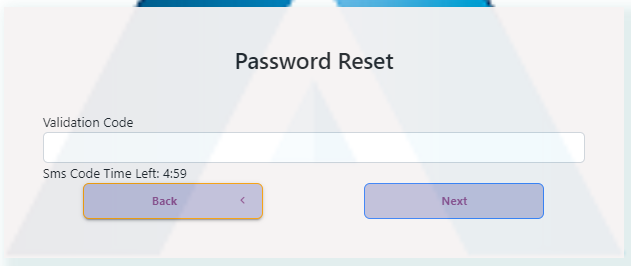
### Validation Code

Enter the verification code received through the selected verification method.

After the code is successfully verified, select **Next** to continue to the password creation page.

<figure><img src="https://60632999-files.gitbook.io/~/files/v0/b/gitbook-x-prod.appspot.com/o/spaces%2F-MgdlemWm0JI6_ILmafb%2Fuploads%2FDthvaFex8EDenmQ6EPu0%2Fimage.png?alt=media&amp;token=acc4355b-14c1-45bd-afe4-685e1480ee9c" alt=""><figcaption></figcaption></figure>

### New Password

Enter the new password and confirm it by entering it again.

Additional options include:

* **Unlock Account:** Unlocks the user account as part of the password reset process.
* **Generate Password Tool:** Generates a strong password that complies with the organization's password policy.

Select **Send** to complete the password reset.

<figure><img src="https://60632999-files.gitbook.io/~/files/v0/b/gitbook-x-prod.appspot.com/o/spaces%2F-MgdlemWm0JI6_ILmafb%2Fuploads%2FEnm3nB7KF9ByEjNVfaOO%2Fimage.png?alt=media&amp;token=45065957-3905-46e2-b172-1d36efed51e0" alt=""><figcaption></figcaption></figure>

### Generate Password Tool

The **Generate Password Tool** creates strong passwords that comply with the organization's password policy.

Administrators can configure the generated password to include:

* Uppercase letters
* Lowercase letters
* Numbers
* Special characters
* Password length

The generated password can be copied directly into the password fields.


# Unlock Account

The Account Unlocking feature allows users to unlock their Active Directory account after successfully completing the required verification process.

<figure><img src="https://60632999-files.gitbook.io/~/files/v0/b/gitbook-x-prod.appspot.com/o/spaces%2F-MgdlemWm0JI6_ILmafb%2Fuploads%2F0O6TgnqhH04F3mj21cJM%2Fimage.png?alt=media&amp;token=eeb851c4-0727-4a3f-9b6a-46861e1e24d5" alt=""><figcaption></figcaption></figure>

### User Identification

In the first step, the user enters their **Username** or **Email** address to begin the account unlock process.

After the information is validated, select **Next** to continue.

<figure><img src="https://60632999-files.gitbook.io/~/files/v0/b/gitbook-x-prod.appspot.com/o/spaces%2F-MgdlemWm0JI6_ILmafb%2Fuploads%2FpgIDrweZEreE9g173wca%2Fimage.png?alt=media&amp;token=d0373b1c-e7cf-4113-90ce-220ef223ffa8" alt=""><figcaption></figcaption></figure>

### Validation Type Selection

The user selects the verification method that will be used to unlock the account.

The available verification methods are configured by the administrator.

Supported verification methods include:

* SMS
* Email
* Authenticator

After selecting the verification method, select **Next** to continue.


# Remember User Name

The **Remember User Name** feature allows users to retrieve their username after successfully verifying their identity.

After the required information is validated, the user's username is displayed.

<figure><img src="https://60632999-files.gitbook.io/~/files/v0/b/gitbook-x-prod.appspot.com/o/spaces%2F-MgdlemWm0JI6_ILmafb%2Fuploads%2Fiw8NdTkTJjjb1fYtl977%2Fimage.png?alt=media&amp;token=1ee62f1e-2c1e-4cca-b108-27132156af1b" alt=""><figcaption></figcaption></figure>

#### Fields

* **National ID Number:** Specifies the user's national identification number.
* **Domain:** Specifies the user's Active Directory domain.
* **Phone Number:** Specifies the mobile phone number registered in Active Directory.

After completing the required information, select **Send** to retrieve the username. Select **Back** to return to the previous page.

> **Note**
>
> To use this feature, **Remember User Name** must be enabled in **Portal Settings**, and the required LDAP attributes must be configured in the LDAP settings.


# Language

Change for english or Turkish langue


# MY ACCOUNT

The My Account page is the first screen displayed when users sign in to ARKSSPR. From this page, users can manage their account settings and update their password.

<figure><img src="https://60632999-files.gitbook.io/~/files/v0/b/gitbook-x-prod.appspot.com/o/spaces%2F-MgdlemWm0JI6_ILmafb%2Fuploads%2F85r0wcAK6EwIC7hVMrwV%2Fimage.png?alt=media&amp;token=a881fc3e-f1b9-4e47-81fb-11f4f886bd15" alt=""><figcaption></figcaption></figure>

#### Change Password

Users can change their current password from this page.

The **Generate Password** option automatically creates a strong password that complies with the organization's password policy. Users can either use the generated password or enter their own password.

<figure><img src="https://60632999-files.gitbook.io/~/files/v0/b/gitbook-x-prod.appspot.com/o/spaces%2F-MgdlemWm0JI6_ILmafb%2Fuploads%2F4kEzZzuY117uUS7Nmbdg%2Fimage.png?alt=media&amp;token=b4525d97-2f7b-448d-9514-d863c5dfd211" alt=""><figcaption></figcaption></figure>

#### Validation Type

The **Validation Type** setting defines the verification method that users will use when performing **Password Reset** and **Unlock Account** operations.

Only the selected verification method is enabled. All other verification methods are automatically disabled.

<figure><img src="https://60632999-files.gitbook.io/~/files/v0/b/gitbook-x-prod.appspot.com/o/spaces%2F-MgdlemWm0JI6_ILmafb%2Fuploads%2FDP376tDAnkWFyWznJUV4%2Fimage.png?alt=media&amp;token=3d40d835-b7b0-40bc-b05d-2cd882841152" alt=""><figcaption></figcaption></figure>

<figure><img src="https://60632999-files.gitbook.io/~/files/v0/b/gitbook-x-prod.appspot.com/o/spaces%2F-MgdlemWm0JI6_ILmafb%2Fuploads%2FFglrI8hDc3PJxyS62yFU%2Fimage.png?alt=media&amp;token=3bce74a9-a7e5-4f9c-8cd1-50ecc8b1122e" alt=""><figcaption></figcaption></figure>

#### Default Country Selection

If **SMS** is selected as the verification method, the **Default Country Selection** option becomes available.

<figure><img src="https://60632999-files.gitbook.io/~/files/v0/b/gitbook-x-prod.appspot.com/o/spaces%2F-MgdlemWm0JI6_ILmafb%2Fuploads%2FLwJKsswpu3gKmZYmynwj%2Fimage.png?alt=media&amp;token=03b1d7f7-23a6-446e-b363-f010ec7f3cd7" alt=""><figcaption></figcaption></figure>

This setting specifies the default country code used for SMS-based verification.

<figure><img src="https://60632999-files.gitbook.io/~/files/v0/b/gitbook-x-prod.appspot.com/o/spaces%2F-MgdlemWm0JI6_ILmafb%2Fuploads%2F3eK238TlDoZPKYIe77vY%2Fimage.png?alt=media&amp;token=c5322b9c-271d-4608-ba5d-663472136f0d" alt=""><figcaption></figcaption></figure>

#### Unlock Account

The **Unlock Account** section displays the verification methods that users can use to unlock their account.


# REPORT MANAGEMENT

<figure><img src="https://60632999-files.gitbook.io/~/files/v0/b/gitbook-x-prod.appspot.com/o/spaces%2F-MgdlemWm0JI6_ILmafb%2Fuploads%2FrwIx8CL5G0ULN4GAlfgC%2Fimage.png?alt=media&amp;token=8e7ec1ba-d831-4f9e-878e-65c40726ff2e" alt=""><figcaption></figcaption></figure>

<figure><img src="https://60632999-files.gitbook.io/~/files/v0/b/gitbook-x-prod.appspot.com/o/spaces%2F-MgdlemWm0JI6_ILmafb%2Fuploads%2FOh4sj47Sb905aJlnbLns%2Fimage.png?alt=media&amp;token=77daffb8-6b3a-41ec-8789-16882c96effb" alt=""><figcaption></figcaption></figure>

* Login Report
* Password Change Report
* Password Reset Report
* Unlock Report
* General SSPR Report
* Delegation Report


# ROLE MANAGEMENT

The **Role Management** page is used to assign and manage administrative permissions in ARKSSPR. A user can be a member of multiple roles. Permissions are evaluated cumulatively based on all assigned roles.

ARKSSPR provides the following administrative roles:

* Administrator
* Report Operator
* Help Desk
* Restricted User

***

### Administrator

The **Administrator** role has full administrative privileges across the ARKSSPR platform.

Administrators can perform the following actions:

* Change their password.
* Configure an alternate email address for two-factor authentication (2FA).
* Configure the default verification method used for password reset and account unlock operations.
* Register a mobile authenticator application by scanning a QR code.
* View and manage reports.
* Manage roles and role assignments.
* Configure system settings.
* Manage licenses.
* View system logs.
* Configure screen settings.
* View and manage user requests.

***

### Report Operator

The **Report Operator** role is responsible for reporting operations.

Users assigned to this role can:

* Change their password.
* Configure an alternate email address.
* Configure the default verification method.
* Register a mobile authenticator application.
* View reports.
* Create scheduled reports.
* Export reports.
* Send reports by email.

***

### Help Desk

The **Help Desk** role is responsible for managing user requests and support activities.

Users assigned to this role can:

* Change their password.
* Configure an alternate email address.
* Configure the default verification method.
* Register a mobile authenticator application.
* View user requests.
* Manage and close support tickets.

***

### Users

The **Users** category represents standard Active Directory users who are not assigned an administrative role.

Standard users can:

* Change their password.
* Configure an alternate email address.
* Configure the default verification method.
* Register a mobile authenticator application.

***

### Restricted User

The **Restricted User** role is intended for users or groups that should not have access to ARKSSPR.

Users assigned to this role:

* Cannot sign in to ARKSSPR.
* Cannot perform password management operations.
* Cannot access any administrative pages.
* Cannot use any permissions granted by other assigned roles.

> **Note**
>
> The **Restricted User** role overrides all other role assignments. If a user belongs to this role, all ARKSSPR permissions are denied.

<figure><img src="https://60632999-files.gitbook.io/~/files/v0/b/gitbook-x-prod.appspot.com/o/spaces%2F-MgdlemWm0JI6_ILmafb%2Fuploads%2FeeLjP5D07XitVCEGQj6T%2Fimage.png?alt=media&amp;token=6941b1e9-5687-4620-a29e-39a5b6da8683" alt=""><figcaption></figcaption></figure>

This page allows administrators to manage role assignments.

* The left pane displays the available roles.
* The right pane displays the users assigned to the selected role.
* Select **Add User** to assign additional users to the selected role or remove existing assignments.

User names shown in the documentation have been anonymized (for example, **DOMAIN\User1** and **DOMAIN\User2**).


# SETTINGS

<figure><img src="https://60632999-files.gitbook.io/~/files/v0/b/gitbook-x-prod.appspot.com/o/spaces%2F-MgdlemWm0JI6_ILmafb%2Fuploads%2F0LeJzy0z19NXzibmodg2%2Fimage.png?alt=media&amp;token=6992e8d2-6275-4405-adda-b4b161d8fccb" alt=""><figcaption></figcaption></figure>


# GENERAL SETTINGS


# Server Settings

The **Server Settings** page is used to configure the general server settings of ARKSSPR.

<figure><img src="https://60632999-files.gitbook.io/~/files/v0/b/gitbook-x-prod.appspot.com/o/spaces%2F-MgdlemWm0JI6_ILmafb%2Fuploads%2FmfQMCey1Ljvso2g6iJKv%2Fimage.png?alt=media&amp;token=3fa79ac5-e7ef-483c-85ec-ba7c50a25048" alt=""><figcaption></figcaption></figure>

#### Grooming

**Grooming** automatically removes outdated records from the database. The cleanup process is performed by the Windows service running on the server at the configured interval.

* **Data Age (Day):** Specifies the age of records to be deleted, in days.
* **Period (Minute):** Specifies how often the cleanup process runs, in minutes.
* **Number of Records to be Deleted:** Specifies the maximum number of records removed during each cleanup cycle.
* **Disabled:** Enables or disables the grooming process.

Select **Update** to save your changes.


# LDAP Settings

The **LDAP Settings** page is used to configure the connection between ARKSSPR and an Active Directory or LDAP server. These settings are required for user authentication and directory lookups.

After the configuration is completed, select **Test** to verify the connection.

<figure><img src="https://60632999-files.gitbook.io/~/files/v0/b/gitbook-x-prod.appspot.com/o/spaces%2F-MgdlemWm0JI6_ILmafb%2Fuploads%2FN9SmbfMTiKsut4yfFUil%2Fimage.png?alt=media&amp;token=3f2de66a-868d-48c6-b7a6-2d465a79fb93" alt=""><figcaption></figcaption></figure>

#### Fields

* **Domain FQDN:** The fully qualified domain name of the LDAP server.
* **Port:** The LDAP communication port.
* **Secure:** Enables TLS for the LDAP connection.
* **Username / Password:** The service account credentials used to connect to LDAP.
* **Authentication:** Enables LDAP authentication.

Configured LDAP connections are listed at the bottom of the page. Existing configurations can be edited or deleted.

<figure><img src="https://60632999-files.gitbook.io/~/files/v0/b/gitbook-x-prod.appspot.com/o/spaces%2F-MgdlemWm0JI6_ILmafb%2Fuploads%2F5mPrVNNLGzmtxztEIBa5%2Fimage.png?alt=media&amp;token=dea3cf21-0300-4360-a038-3ca0c982a9d8" alt=""><figcaption></figcaption></figure>

### Edit LDAP

The **Edit LDAP** window is used to modify an existing LDAP configuration.

Additional settings include:

* **AD User Phone Attribute:** Specifies the Active Directory attribute that stores users' phone numbers.
* **Alternate Input Attribute:** Specifies an alternative Active Directory attribute that can be used for user sign-in.
* **Login Tooltip Message:** Displays a custom informational message on the sign-in page.
* **Remember User Name Attribute:** Specifies the Active Directory attribute used by the **Remember User Name** feature.

Select **Test** to verify the configuration and **Update** to save your changes.


# Email Settings

The **Email Settings** page is used to configure the SMTP server settings used by ARKSSPR.

This configuration is used for the following purposes:

* Sending verification emails when users select **Email** as their verification method.
* Sending system log notifications and other email alerts generated by ARKSSPR to system administrators.

<figure><img src="https://60632999-files.gitbook.io/~/files/v0/b/gitbook-x-prod.appspot.com/o/spaces%2F-MgdlemWm0JI6_ILmafb%2Fuploads%2Fek3LD1d82JiVXewf4ixn%2Fimage.png?alt=media&amp;token=4b860efb-0a35-48d2-9d9f-d9bf66615485" alt=""><figcaption></figcaption></figure>

#### Fields

* **Server Name:** Specifies the SMTP server address.
* **TLS:** Enables TLS for the SMTP connection.
* **Port:** Specifies the SMTP communication port.
* **From:** Specifies the sender email address.
* **Username / Password:** Specifies the SMTP account credentials.
* **Authentication:** Enables SMTP authentication.
* **To Test E-Mail:** Specifies the recipient address for the test email.

Select **Test** to verify the SMTP configuration and **Save** to store the settings.


# SMS Settings

The **SMS Settings** page is used to configure the integration between ARKSSPR and the organization's SMS service provider.

By configuring the organization's SMS API settings, ARKSSPR can send SMS messages for password reset, account unlock, and other SMS-based verification operations.

<figure><img src="https://60632999-files.gitbook.io/~/files/v0/b/gitbook-x-prod.appspot.com/o/spaces%2F-MgdlemWm0JI6_ILmafb%2Fuploads%2FRGovOEKbFyCKWclkxxWV%2Fimage.png?alt=media&amp;token=444518e2-2aac-4d8b-8064-266110020034" alt=""><figcaption></figcaption></figure>

#### Fields

* **Method Type:** Specifies the HTTP method used for the SMS API request.
* **Use Authorization:** Enables API authentication.
* **API URL:** Specifies the endpoint of the SMS service provider.
* **HTTP Accept:** Specifies the **Accept** header sent with the API request.
* **Content Type:** Specifies the content type of the API request.
* **Header:** Specifies any additional HTTP headers required by the SMS API.
* **Request Body:** Defines the request payload sent to the SMS API.
* **Phone Number for Test:** Specifies the phone number used to send a test SMS.

Select **Test** to verify the SMS configuration and **Update** to save your changes.


# Authenticator Settings

The **Authenticator Settings** page controls whether users can configure a mobile authenticator application from the sign-in page.

<figure><img src="https://60632999-files.gitbook.io/~/files/v0/b/gitbook-x-prod.appspot.com/o/spaces%2F-MgdlemWm0JI6_ILmafb%2Fuploads%2Fmoe1rWa9jIm1NngO93IV%2Fimage.png?alt=media&amp;token=cfe80451-5038-4a52-a5e1-c435418a1663" alt=""><figcaption></figcaption></figure>

When **Is Allow Configure Authenticator In Login** is enabled, users can register and configure their authenticator application directly from the sign-in page.

Select **Update** to save your changes.


# SysLog Settings

**Syslog Settings** page is used to configure the Syslog servers that receive log messages generated by ARKSSPR.

In most enterprise environments, log messages from servers, applications, and security devices are collected by a centralized **Syslog server**. After a Syslog server is configured on this page, ARKSSPR forwards its log messages to the specified Syslog server.

<figure><img src="https://60632999-files.gitbook.io/~/files/v0/b/gitbook-x-prod.appspot.com/o/spaces%2F-MgdlemWm0JI6_ILmafb%2Fuploads%2FmyfUFmtRbAfgIbbzEolS%2Fimage.png?alt=media&amp;token=d72d61ff-6ada-4da1-8cbb-c6a13a9510b7" alt=""><figcaption></figcaption></figure>

#### Fields

* **Server Address:** Specifies the IP address or FQDN of the Syslog server.
* **Port:** Specifies the port used for Syslog communication.
* **Protocol:** Specifies the Syslog transport protocol (UDP, TCP, or TLS).
* **Syslog Format:** Specifies the format of the transmitted log messages (for example, RFC3164 or RFC5424).
* **TLS/SSL:** Encrypts Syslog communication by using TLS/SSL.

Configured Syslog servers are listed at the bottom of the page. Multiple Syslog servers can be configured.

Select **Add** to add a new Syslog server.


# Ticket Settings

**Ticket Settings** page is used to configure the **Help Desk** email address that receives support requests generated by ARKSSPR.

When users create a support request, the request is sent to the email address configured on this page. This allows the Help Desk team to review and manage incoming support requests.

<figure><img src="https://60632999-files.gitbook.io/~/files/v0/b/gitbook-x-prod.appspot.com/o/spaces%2F-MgdlemWm0JI6_ILmafb%2Fuploads%2F5sR3M2tt1f4Aivr5Gdf8%2Fimage.png?alt=media&amp;token=9e332b70-210f-41c8-a8a2-92b2e5bfd745" alt=""><figcaption></figcaption></figure>

#### Fields

* **Help Desk Mail Address:** Specifies the email address that will receive support requests.

Select **Update** to save your changes.


# External API Settings

**External API Settings** page is used to generate an API token for secure communication between ARKSSPR and other applications or services within the organization's environment.

The generated **API Token** provides authorized access to ARKSSPR APIs and is used by external systems to securely interact with ARKSSPR services.

<figure><img src="https://60632999-files.gitbook.io/~/files/v0/b/gitbook-x-prod.appspot.com/o/spaces%2F-MgdlemWm0JI6_ILmafb%2Fuploads%2Fu84pmjxgAyOrftE8734x%2Fimage.png?alt=media&amp;token=5ff031ad-1aae-46fe-a642-8038962455a7" alt=""><figcaption></figcaption></figure>

#### Fields

* **Generate External API Token:** Generates a new API access token for external applications.

> **Note**
>
> API tokens should be used only by authorized systems and stored securely.


# Login Settings

**Login Settings** page is used to configure the authentication methods and security options available during the sign-in process.

<figure><img src="https://60632999-files.gitbook.io/~/files/v0/b/gitbook-x-prod.appspot.com/o/spaces%2F-MgdlemWm0JI6_ILmafb%2Fuploads%2FkOKM1XFTsQS1da6UHmCk%2Fimage.png?alt=media&amp;token=8239a85f-f880-4481-b684-5b9d358c39d4" alt=""><figcaption></figcaption></figure>

**General Settings** tab is used to configure the authentication methods available on the sign-in page and the default sign-in behavior.

#### Fields

* **Show the Random Password Generating Button:** Enables the random password generator on the password creation page.
* **SMS:** Enables or disables SMS-based verification.
* **Email:** Enables or disables email-based verification.
* **Authenticator:** Enables or disables authentication using an authenticator application.
* **Validation Type Selection:** Specifies the default verification method for users.

Select **Save** to apply your changes.

<figure><img src="https://60632999-files.gitbook.io/~/files/v0/b/gitbook-x-prod.appspot.com/o/spaces%2F-MgdlemWm0JI6_ILmafb%2Fuploads%2FuUybz5XaaLvFffPpnGYY%2Fimage.png?alt=media&amp;token=24e3def7-a3b2-4629-a15c-b354918309bd" alt=""><figcaption></figcaption></figure>

**Captcha Settings** tab is used to configure CAPTCHA protection for sign-in and password management operations.

#### Fields

* **Show CAPTCHA on Login Page:** Enables CAPTCHA on the sign-in page.
* **Show CAPTCHA on the Password Reset Page:** Enables CAPTCHA on the password reset page.
* **Show CAPTCHA on Unlock Page:** Enables CAPTCHA on the account unlock page.
* **Show CAPTCHA on the Second Email Login Page:** Enables CAPTCHA on the second email verification page.
* **Displaying Captcha:** Specifies whether CAPTCHA is always displayed or only after a specified number of failed sign-in attempts.
* **Captcha Validity Period (min.):** Specifies how long a generated CAPTCHA remains valid, in minutes.

Select **Save** to apply your changes.


# User Settings

<figure><img src="https://60632999-files.gitbook.io/~/files/v0/b/gitbook-x-prod.appspot.com/o/spaces%2F-MgdlemWm0JI6_ILmafb%2Fuploads%2FZM35rRXoKJ3ieK35b1dD%2Fimage.png?alt=media&amp;token=f93c4601-3cfe-4cd7-8559-1ee288c69f9b" alt=""><figcaption></figcaption></figure>

#### Delegation

The **Delegation** feature allows a user to delegate specific ARKSSPR operations to another user, group, or organizational unit (OU). The delegated permissions remain effective for the configured duration.

Existing delegations are displayed on this page. Administrators can create, edit, or delete delegation entries.

<figure><img src="https://60632999-files.gitbook.io/~/files/v0/b/gitbook-x-prod.appspot.com/o/spaces%2F-MgdlemWm0JI6_ILmafb%2Fuploads%2FGIs4wsM2VdUY9UpINE8I%2Fimage.png?alt=media&amp;token=9b3ce66f-5c2b-40b3-834f-f8ad7305a895" alt=""><figcaption></figcaption></figure>

### Add Delegation (User)

The **Add Delegation** window is used to delegate permissions to an individual user.

To create a delegation:

1. Select the appropriate **FQDN**.
2. Search for the target user.
3. Select the user.
4. Select **Next** to continue.

<figure><img src="https://60632999-files.gitbook.io/~/files/v0/b/gitbook-x-prod.appspot.com/o/spaces%2F-MgdlemWm0JI6_ILmafb%2Fuploads%2FANiAvOkTjMLWtY8nKXgM%2Fimage.png?alt=media&amp;token=5e8f0b4b-29da-4f06-aaac-f4b5daff8434" alt=""><figcaption></figcaption></figure>

This step defines the scope of the delegation.

Permissions can be assigned to one of the following target types:

* **User**
* **Group**
* **OU (Organizational Unit)**

After selecting the required users, groups, or OUs, move them to the selected items list to include them in the delegation.

<figure><img src="https://60632999-files.gitbook.io/~/files/v0/b/gitbook-x-prod.appspot.com/o/spaces%2F-MgdlemWm0JI6_ILmafb%2Fuploads%2Fq7qseaDXmZtRsbhyFF9U%2Fimage.png?alt=media&amp;token=a9400c13-f479-4a7f-bcd9-9c88265ff0d8" alt=""><figcaption></figcaption></figure>

### Delegation Duration

This page is used to configure how long the delegation remains active.

The following options are available:

* **Unlimited:** The delegation remains active until it is manually removed.
* **Limited:** The delegation expires on the specified date and time.

Select **Save** to complete the configuration.


# Policy Settings

The **Password Settings** tab is used to configure the password rules applied during password creation and validation.

<figure><img src="https://60632999-files.gitbook.io/~/files/v0/b/gitbook-x-prod.appspot.com/o/spaces%2F-MgdlemWm0JI6_ILmafb%2Fuploads%2FwZ3M363uCECy3ixh0kOm%2Fimage.png?alt=media&amp;token=4cbf60d1-38de-4784-8aff-ccbb9d221a27" alt=""><figcaption></figcaption></figure>

#### Blacklist Settings

This section allows administrators to define passwords that users are not permitted to use.

* **Upload Blacklist File:** Uploads a blacklist containing prohibited passwords.
* **Regular Expression:** Defines password restrictions by using regular expressions.
* **Delete Password:** Removes a password from the blacklist.

#### Password Policy

This section defines the password complexity requirements.

* **Upper Case:** Requires uppercase characters.
* **Lower Case:** Requires lowercase characters.
* **Number:** Requires numeric characters.
* **Special Character:** Requires special characters.
* **Required Criteria Count:** Specifies the minimum number of password requirements that must be satisfied.
* **Minimum Length:** Specifies the minimum password length.
* **Minimum Password Age:** Specifies the minimum time before a password can be changed again.

Select **Save** to apply your changes.

<figure><img src="https://60632999-files.gitbook.io/~/files/v0/b/gitbook-x-prod.appspot.com/o/spaces%2F-MgdlemWm0JI6_ILmafb%2Fuploads%2FHTHdNbkCkhRaiH9Gc6y6%2Fimage.png?alt=media&amp;token=a91aa546-e22d-4e71-b04c-fb4009d8acb1" alt=""><figcaption></figcaption></figure>

#### Policy Settings

The **Policy Settings** tab is used to create password and verification policies for specific users, groups, or organizational units.

Each policy can be assigned to a specific **Domain**, **Group**, or **Organizational Unit (OU)**.

#### Policy Configuration

* **Policy Name:** Specifies the policy name.
* **Domain / Group / OU:** Specifies where the policy is applied.
* **Enabled:** Enables or disables the policy.
* **Log:** Enables logging for policy-related operations.
* **Only Internal Network Usage:** Restricts the policy to the internal network.

#### Process Type Determination

Specifies the operations to which the policy applies.

* Password Reset
* Unlock
* Password Change

#### Password Settings Determination

Defines the password complexity requirements for the selected policy.

#### Validation Type Determination

Specifies the verification methods available for the selected policy.

* SMS
* Email
* Authenticator

Configured policies are listed at the bottom of the page. Select **Policy History** to view the policy change history.

Select **Save** to apply your changes.


# Portal Settings

**Portal Settings** page is used to configure the features available in the ARKSSPR Self-Service Portal and the messages displayed to users.

<figure><img src="https://60632999-files.gitbook.io/~/files/v0/b/gitbook-x-prod.appspot.com/o/spaces%2F-MgdlemWm0JI6_ILmafb%2Fuploads%2FoOKFzSrXeVNYzi2Bf0Cv%2Fimage.png?alt=media&amp;token=df6bf8f8-2c92-4559-9ce9-689fd68e2c24" alt=""><figcaption></figcaption></figure>

#### General Settings

This section controls which self-service operations are available to users.

* **Password Reset:** Allows users to reset their password without providing their current password.
* **Unlock:** Allows users to unlock their account by using their configured verification methods.
* **Password Change:** Allows users to change their password by providing their current password.
* **Hide Support Button on End User Page:** Hides the **Support** button from the end-user portal.
* **Hide Settings Button:** Hides the **Settings** button on the sign-in page.
* **Username Remember on the Home Screen:** Enables the **Remember User Name** feature on the sign-in page, allowing users to retrieve their username through an LDAP lookup.

#### Information Messages

* **Password Reset & Change Info Message:** Specifies the informational message displayed on the password reset and password change pages.
* **Warning Message When Mobile Phone Is Not Found:** Specifies the warning message displayed when no mobile phone number is available for the user in Active Directory.

Select **Save** to apply your changes.


# Agent Settings

Agent Settings page is used to configure Active Directory synchronization and password expiration reminder notifications for the ARKSSPR Agent.

<figure><img src="https://60632999-files.gitbook.io/~/files/v0/b/gitbook-x-prod.appspot.com/o/spaces%2F-MgdlemWm0JI6_ILmafb%2Fuploads%2FwKmyDWaEcElYvuKAP0dG%2Fimage.png?alt=media&amp;token=d429095b-ed8c-4d86-bec9-b13277ec6307" alt=""><figcaption></figcaption></figure>

#### Fields

* **Is Credential Active:** Enables or disables password expiration reminder notifications.
* **AD Item Sync (Hour):** Specifies how often Active Directory information is synchronized, in hours.
* **Reminder Interval (Day):** Specifies how many days before password expiration users begin receiving reminder notifications.
* **Message Duration Seconds:** Specifies how long the reminder message is displayed, in seconds.
* **Message Template:** Defines the reminder message displayed to users. The **{0}** placeholder is automatically replaced with the number of days remaining before the user's password expires.

Select **Save** to apply your changes.


# LICENSE MANAGEMENT

The **License Management** page is used to install and manage the ARKSSPR license.

This page allows administrators to select either **Online License** or **Offline License** validation. In offline environments, the license is activated by uploading the provided license file.

<figure><img src="https://60632999-files.gitbook.io/~/files/v0/b/gitbook-x-prod.appspot.com/o/spaces%2F-MgdlemWm0JI6_ILmafb%2Fuploads%2FqqZ14bpCCTxi6Lnogbvd%2Fimage.png?alt=media&amp;token=6d843919-0661-483b-9609-07387e55448a" alt=""><figcaption></figcaption></figure>

#### Fields

* **Select License Check Type:** Specifies the license validation method (**Online** or **Offline**).
* **Valid License:** Displays the current license status.
* **File Select:** Selects the license file to upload.
* **Machine ID:** Displays the unique server identifier used when generating the license.
* **Clear All Cache:** Clears the license cache and reloads the license information.

After selecting the license file, select **Save** to apply the license.


# LOG MANAGEMENT

The **Log Management** page is used to view and review log records generated by ARKSSPR.

This page provides information about user activities, system events, warnings, and errors. Log records can be filtered to simplify troubleshooting and auditing.

<figure><img src="https://60632999-files.gitbook.io/~/files/v0/b/gitbook-x-prod.appspot.com/o/spaces%2F-MgdlemWm0JI6_ILmafb%2Fuploads%2FZPDNCUgL0QSdZRM9unup%2Fimage.png?alt=media&amp;token=ff14de50-ad19-412f-863d-f0ddc8ef057c" alt=""><figcaption></figcaption></figure>

#### Fields

* **Domain Name:** Displays the domain where the operation occurred.
* **User Name:** Displays the user who performed the operation.
* **Scope:** Displays the category of the logged operation.
* **Log Type:** Displays the severity of the log entry (for example, **Information**, **Warning**, or **Error**).
* **Message:** Displays detailed information about the logged operation or event.
* **Log Date:** Displays the date and time when the log entry was created.

Use the filter fields at the top of the page to search for specific log entries. Select **Clear** to remove all applied filters.


# SCREEN MANAGEMENT

**Screen Management** page is used to customize the appearance of the ARKSSPR user interface.

Administrators can configure the organization's branding by uploading logos, background images, favicons, colors, and custom text.

<figure><img src="https://60632999-files.gitbook.io/~/files/v0/b/gitbook-x-prod.appspot.com/o/spaces%2F-MgdlemWm0JI6_ILmafb%2Fuploads%2FpZm2DVUkAIOal2XxlbmE%2Fimage.png?alt=media&amp;token=ef028bc0-a897-4cbc-ba85-743d631094fd" alt=""><figcaption></figcaption></figure>

#### Fields

* **Logo Update:** Uploads the logo displayed on the sign-in page.
* **Background Update:** Uploads the background image used on the sign-in page.
* **Favicon Update:** Uploads the favicon displayed in the browser tab.

#### Other Settings

This section is used to customize the portal appearance.

* **Logo Alignment:** Specifies the position of the logo on the sign-in page (**Left**, **Middle**, or **Right**).
* **Title:** Specifies the title displayed on the browser tab.
* **Browser Title:** Customizes the browser window title.
* **Footer:** Specifies the text displayed at the bottom of the portal.
* **Top Menu and Button Color:** Specifies the color of the top menu and action buttons.
* **Left Menu Color:** Specifies the color of the left navigation menu.
* **Text Color:** Specifies the text color used throughout the user interface.

Select **Save** to apply your changes or **Default Settings** to restore the default appearance.


# TICKET MANAGEMENT

The **Ticket Management** page is used to view and manage support requests created by users.

Administrators can search, review, and delete support tickets from this page.

<figure><img src="https://60632999-files.gitbook.io/~/files/v0/b/gitbook-x-prod.appspot.com/o/spaces%2F-MgdlemWm0JI6_ILmafb%2Fuploads%2FaUb1ZBxtDYQdYxaSaSqR%2Fimage.png?alt=media&amp;token=e5829b25-01db-4eca-9453-26ebc74ab225" alt=""><figcaption></figcaption></figure>

#### Filter

Support requests can be filtered by the following criteria:

* **Name Surname:** Filters tickets by the user's name.
* **Status:** Filters tickets by their current status.
* **Start Date / End Date:** Filters tickets within a specified date range.

Select **Search** to apply the filter or **Clear** to remove all filter criteria.

#### Ticket List

The following information is displayed for each support request:

* **Name Surname:** The user who created the ticket.
* **Subject:** The subject of the support request.
* **Title:** The ticket title.
* **Description:** The detailed description of the request.
* **Communication Value:** The user's contact information.
* **Create Date:** The date and time when the ticket was created.
* **Status:** The current status of the ticket.

Select **Delete** to remove the selected support tickets.


# Administration


# Login

The following operations can be performed by logging into the SSPR. See [My Account](/master/administration/my-account).

### Administrators

1. You can change your password,
2. You can define an alternative E-Mail address to be used in 2FA transactions,
3. You can customize the default verification type to be used for password reset and account unlocking operations,
4. You can scan and identify QR for the mobile authenticator application to be used in 2FA transactions,
5. You can get reports,
6. Can manage roles,
7. You can change the settings,
8. Can define licenses,
9. Can read logs,
10. You can customize the screen,
11. Can see requests.

### Report Operators

1. You can change your password,
2. You can define an alternative E-Mail address to be used in 2FA transactions,
3. You can customize the default verification type to be used for password reset and account unlocking operations,
4. You can scan and identify QR for the mobile authenticator application to be used in 2FA transactions,
5. You can get reports,

### Help Desk

1. You can change your password,
2. You can define an alternative E-Mail address to be used in 2FA transactions,
3. You can customize the default verification type to be used for password reset and account unlocking operations,
4. You can scan and identify QR for the mobile authenticator application to be used in 2FA transactions,
5. Can see requests.

### Users

1. You can change your password,
2. You can define an alternative E-Mail address to be used in 2FA transactions,
3. You can customize the default verification type to be used for password reset and account unlocking operations,
4. You can scan and identify QR for the mobile authenticator application to be used in 2FA transactions,


# Root Account

ARKSSPR has a built-in **root** user account. This account is added for troubleshooting purposes in case it cannot be accessed with Active Directory accounts. It is a limited administrator account and can change basic settings for ARKSSPR. The activities that the root account can do are as follows.

1. Root password can be changed,
2. Can interfere with role management,
3. Can change server settings,&#x20;
   1. Grooming settings,&#x20;
   2. LDAP Settings,&#x20;
   3. E-Mail settings,&#x20;
   4. SMS settings,&#x20;
   5. Syslog settings,&#x20;
   6. Syslog message settings,&#x20;
   7. Support settings,&#x20;
   8. External API settings,
4. Displaying the MachineID information required for the license. Users with SSPR Administrators authority can change the license with an Active Directory account.

{% hint style="success" %}
The root user name is a hard-coded name and cannot be changed. Only its password is kept encrypted in the database. This password is kept irreversibly.&#x20;
{% endhint %}

Two-factor authentication is not used when logging in with the root user account. It is an account designed mostly for system recovery.


# Password Reset

When users forget their password, they can reset their password via ARKSSPR. The password reset process is started by clicking the **Password Reset** button on the main screen.

The username is entered and the appropriate domain is selected from the list. Supported formats in the username section are as follows.

1. User Principal Name (<username@domain.com>)
2. samAccountName (domain\username)

<figure><img src="https://60632999-files.gitbook.io/~/files/v0/b/gitbook-x-prod.appspot.com/o/spaces%2F-MgdlemWm0JI6_ILmafb%2Fuploads%2FYD8z34izAb1gJaptGfpI%2Fimage.png?alt=media&amp;token=fe6169df-6de1-4f00-8098-c4c08fd73194" alt=""><figcaption><p>Username and Domain Screen</p></figcaption></figure>

Select the 2FA method. The next screen will vary depending on the method selected.

<figure><img src="https://60632999-files.gitbook.io/~/files/v0/b/gitbook-x-prod.appspot.com/o/spaces%2F-MgdlemWm0JI6_ILmafb%2Fuploads%2FRMdLM6XjV2Z11wD1LbbV%2Fimage.png?alt=media&amp;token=1c90deb0-9ce9-40a1-a627-9b8fbc59977f" alt=""><figcaption><p>Validation Type</p></figcaption></figure>

### SMS

When SMS is selected as the 2FA method, the user is asked to enter his phone number. The last 4 digits of the phone number defined for the user are shown on the screen. All formats can be used when entering the phone number, ARKSSPR normalizes the typed number and converts it into the required format.

* +90 5xx yyy zz tt
* 90 5xx yyy zz tt
* 0 5xx yyy zz tt
* 5xx yyy zz tt

<figure><img src="https://60632999-files.gitbook.io/~/files/v0/b/gitbook-x-prod.appspot.com/o/spaces%2F-MgdlemWm0JI6_ILmafb%2Fuploads%2FCZofF2uASIsBcj8yEdoS%2Fimage.png?alt=media&amp;token=a330594a-425e-4312-be0f-6ae3788dcc12" alt=""><figcaption><p>Password reset with SMS</p></figcaption></figure>

After entering the phone number, the OTP code sent via SMS is entered. You should enter verification code in 5 minutes.

<figure><img src="https://60632999-files.gitbook.io/~/files/v0/b/gitbook-x-prod.appspot.com/o/spaces%2F-MgdlemWm0JI6_ILmafb%2Fuploads%2FjCO4Z8YZgoGZVNSi3DEJ%2Fimage.png?alt=media&amp;token=9a9d6e13-be6a-452a-bd6a-13ad8024fd20" alt=""><figcaption></figcaption></figure>

### E-Mail

When E-Mail is selected as the 2FA method, the user is asked to enter his e-mail address. Some characters of the e-mail defined for the user are shown on the screen.&#x20;

<figure><img src="https://60632999-files.gitbook.io/~/files/v0/b/gitbook-x-prod.appspot.com/o/spaces%2F-MgdlemWm0JI6_ILmafb%2Fuploads%2FfBNSo5OIHFMZzoLmRsfz%2Fimage.png?alt=media&amp;token=b926b3fa-bd64-46ce-b515-42eae7dec7f6" alt=""><figcaption><p>Password reset with Secondary E-Mail</p></figcaption></figure>

After entering the e-mail address, the OTP code sent via e-mail. You should enter verification code in 5 minutes.

<figure><img src="https://60632999-files.gitbook.io/~/files/v0/b/gitbook-x-prod.appspot.com/o/spaces%2F-MgdlemWm0JI6_ILmafb%2Fuploads%2Ft729LhttXV4x8LbxbMwW%2Fimage.png?alt=media&amp;token=42a65680-86f3-4e37-8f6e-7fd85eb8fd8f" alt=""><figcaption></figcaption></figure>

### Authenticator

When Authenticator is selected, the OTP code generated from the application must be entered in this field.

<figure><img src="https://60632999-files.gitbook.io/~/files/v0/b/gitbook-x-prod.appspot.com/o/spaces%2F-MgdlemWm0JI6_ILmafb%2Fuploads%2FP7t7sARFLx9dwKRDWWY0%2Fimage.png?alt=media&amp;token=61505a36-3434-4310-abe0-3551e535ffb2" alt=""><figcaption><p>Password reset with Authenticator App</p></figcaption></figure>

### Password Reset

The new password must be entered twice. If the account is thought to be locked, the Unlock Account option is selected along with the password reset and the account is unlocked.

<figure><img src="https://60632999-files.gitbook.io/~/files/v0/b/gitbook-x-prod.appspot.com/o/spaces%2F-MgdlemWm0JI6_ILmafb%2Fuploads%2FTmN0le531kpYjsnRBnbH%2Fimage.png?alt=media&amp;token=3ffe293d-8f17-4867-9862-a7294642f4fa" alt=""><figcaption><p>Password Reset with Unlock Account</p></figcaption></figure>

### Important

* The password to be chosen must be determined according to ARKSSPR password policies, at least based on Active Directory Password policies.
  * Password complexity,
  * History rules
  * Minimum password age
* Passwords generated with the Generate Password button are not saved anywhere. Therefore, the password generated by this button must be remembered by the user.


# Unlock Account

When users account locked, they can unlock their account via ARKSSPR. The account unlock process is started by clicking the **Unlock Account** button on the main screen.

The username is entered and the appropriate domain is selected from the list. Supported formats in the username section are as follows.

1. User Principal Name (<username@domain.com>)
2. samAccountName (domain\username)

<figure><img src="https://60632999-files.gitbook.io/~/files/v0/b/gitbook-x-prod.appspot.com/o/spaces%2F-MgdlemWm0JI6_ILmafb%2Fuploads%2FVRa3zmf8308haH8HN5t1%2Fimage.png?alt=media&amp;token=1528a59c-8a10-4c64-b499-03e8e5ce6989" alt=""><figcaption></figcaption></figure>

Select the 2FA method. The next screen will vary depending on the method selected.

<figure><img src="https://60632999-files.gitbook.io/~/files/v0/b/gitbook-x-prod.appspot.com/o/spaces%2F-MgdlemWm0JI6_ILmafb%2Fuploads%2FdQ0LUk17CmcoCyBgQv4f%2Fimage.png?alt=media&amp;token=d4e6e197-1f25-4192-851e-d076d234e987" alt=""><figcaption></figcaption></figure>

### SMS

When SMS is selected as the 2FA method, the user is asked to enter his phone number. The last 4 digits of the phone number defined for the user are shown on the screen. All formats can be used when entering the phone number, ARKSSPR normalizes the typed number and converts it into the required format.

* +90 5xx yyy zz tt
* 90 5xx yyy zz tt
* 0 5xx yyy zz tt
* 5xx yyy zz tt

<figure><img src="https://60632999-files.gitbook.io/~/files/v0/b/gitbook-x-prod.appspot.com/o/spaces%2F-MgdlemWm0JI6_ILmafb%2Fuploads%2FHFyfjEBdDoRFgaq2Tys8%2Fimage.png?alt=media&amp;token=07ccb776-ba67-4e21-a8cf-1886cc322c7a" alt=""><figcaption></figcaption></figure>

After entering the phone number, the OTP code sent via SMS is entered. You should enter verification code in 5 minutes.

<figure><img src="https://60632999-files.gitbook.io/~/files/v0/b/gitbook-x-prod.appspot.com/o/spaces%2F-MgdlemWm0JI6_ILmafb%2Fuploads%2FCTrd8i1WDUKx7nCI8lfN%2Fimage.png?alt=media&amp;token=e03ea944-3331-43dd-9135-7166696c14a4" alt=""><figcaption></figcaption></figure>

### E-Mail

When E-Mail is selected as the 2FA method, the user is asked to enter his e-mail address. Some characters of the e-mail defined for the user are shown on the screen.&#x20;

<figure><img src="https://60632999-files.gitbook.io/~/files/v0/b/gitbook-x-prod.appspot.com/o/spaces%2F-MgdlemWm0JI6_ILmafb%2Fuploads%2FI10DvHYOfpFkFo33aW1F%2Fimage.png?alt=media&amp;token=da737cf4-1c49-4b1e-b664-b7c2f50f444a" alt=""><figcaption></figcaption></figure>

After entering the e-mail address, the OTP code sent via e-mail. You should enter verification code in 5 minutes.

<figure><img src="https://60632999-files.gitbook.io/~/files/v0/b/gitbook-x-prod.appspot.com/o/spaces%2F-MgdlemWm0JI6_ILmafb%2Fuploads%2FU2K56fBmXCswH0SBSvku%2Fimage.png?alt=media&amp;token=181829cc-4a57-44fa-b946-2a69e64f453a" alt=""><figcaption></figcaption></figure>

### Authenticator

When Authenticator is selected, the OTP code generated from the application must be entered in this field.

<figure><img src="https://60632999-files.gitbook.io/~/files/v0/b/gitbook-x-prod.appspot.com/o/spaces%2F-MgdlemWm0JI6_ILmafb%2Fuploads%2FRm6dNsJgDn5FYcDRUT4r%2Fimage.png?alt=media&amp;token=a6a3c3d9-9bb8-45f4-bc09-961ad26dab05" alt=""><figcaption></figcaption></figure>

When the Account Unlock wizard is completed, if all information is entered correctly, the account will be unlocked.


# My Account


# Change Password

All authorized/unauthorized users, except users in the Restricted Users group, must log in to change their password. The logged-in user can change his password by entering the password he is currently using and the password he wants to change twice from the Change password tab.

<figure><img src="https://60632999-files.gitbook.io/~/files/v0/b/gitbook-x-prod.appspot.com/o/spaces%2F-MgdlemWm0JI6_ILmafb%2Fuploads%2FbduFvlzrDMOB1bbIdYZ2%2Fimage.png?alt=media&amp;token=10637f3d-9ce7-4894-a366-e19c036e0f7b" alt=""><figcaption><p>Change Password</p></figcaption></figure>

In password changing rules, the settings made under [Password Policy](/master/administration/settings/policy-settings) are used, at least Active Directory rules are used. Changes can only be made once during the minimum password period defined in Active Directory (Default is 1 day). If the pwdLastSet value among the User's Attributes in Active Directory is the same as the changing day, the user cannot change the password. This includes reset activity.

Change activity is done with the user's own powers. Successful and unsuccessful change operations are sent to SIEM products as syslog messages. See: [Syslog Settings](/master/administration/settings/general-settings/syslog-settings).


# Secondary E-Mail

ARKSSPR supports alternative methods other than SMS for 2FA logins. Users can receive the 2FA code with an e-mail address they define. In order to activate this feature, the user must log in to his/her own account via SMS and 2FA. This is done for security purposes and it ensures that the user is the owner of the account.

<figure><img src="https://60632999-files.gitbook.io/~/files/v0/b/gitbook-x-prod.appspot.com/o/spaces%2F-MgdlemWm0JI6_ILmafb%2Fuploads%2F3Y0l7FJxnQzvT3h9tPoR%2Fimage.png?alt=media&amp;token=8b029786-be96-447e-baac-51cc98581b74" alt=""><figcaption><p>Secondary E-Mail</p></figcaption></figure>

The user registers an alternative e-mail address. Then, a one-time verification code is sent to your e-mail address. After the verification code is entered, the second e-mail address is registered. After this stage, users can use the verification code sent to their alternative e-mail address for the secondary verification code for login, password reset and account unlocking processes.

In order to use this feature, [E-Mail settings](/master/administration/settings/general-settings/e-mail-settings) must be made.


# Validation Type

ARKSSPR allows users to choose the default 2FA method for password reset and account unlocking. The user can choose the 2FA method, which is SMS by default.

<figure><img src="https://60632999-files.gitbook.io/~/files/v0/b/gitbook-x-prod.appspot.com/o/spaces%2F-MgdlemWm0JI6_ILmafb%2Fuploads%2F9x6GorlqFG6yb9NNfIKl%2Fimage.png?alt=media&amp;token=5a332768-7656-4f01-a05a-98ed241565ad" alt=""><figcaption><p>Validation Type</p></figcaption></figure>

ARKSSPR allows users to choose the default 2FA method for password reset and account unlocking. The user can choose the 2FA method, which is SMS by default.

### **SMS**

[Short Message Service](/master/administration/settings/general-settings/sms-settings) is used for 2FA. The user can select the country where the phone number is located from the list. Default is Türkiye.

### E-Mail

Secondary E-Mail is used for 2FA. In order to use this, he/she must define a [secondary e-mail address](/master/administration/my-account/secondary-e-mail). [E-Mail settings ](/master/administration/settings/general-settings/e-mail-settings)are required.

### Authenticator

Authenticator application is used for 2FA. In order to use this, the mobile authenticator application must be defined on the [Authenticator Definition](/master/administration/my-account/authenticator-definition) screen.


# Authenticator Definition

With Mobile Authenticator applications, the code to be used for 2FA login can be generated. In order for the user to make this definition, he/she must be logged in to ARKSSPR.

<figure><img src="https://60632999-files.gitbook.io/~/files/v0/b/gitbook-x-prod.appspot.com/o/spaces%2F-MgdlemWm0JI6_ILmafb%2Fuploads%2FjLz2NjkDOxpxmQzjeXez%2Fimage.png?alt=media&amp;token=f7079d71-d582-4baa-aa62-b7800014fdfb" alt=""><figcaption></figcaption></figure>

Users can do this with an Authenticator software that he/she will install on his mobile phone. Two authenticator applications are given below, and any application that supports time-based OTP can be used.

In the Authenticator application, the QR code is scanned with the camera on the account identification screen. The 6-digit code generated only once is entered for confirmation purposes.

If this process is done through a browser on a mobile phone, the QR code may not be scan with the camera. For this purpose, "Can't Scan QR Code?" button is clicked and manual identification can be made with the Secret Key. The code generated in the same way is entered only once for verification purposes.

| Application             | Download Link                                                                                             |
| ----------------------- | --------------------------------------------------------------------------------------------------------- |
| Google Authenticator    | [Google Play Store](https://play.google.com/store/apps/details?id=com.google.android.apps.authenticator2) |
|                         | [Apple AppStore](https://apps.apple.com/tr/app/google-authenticator/id388497605)                          |
| Microsoft Authenticator | [Google Play Store](https://play.google.com/store/apps/details?id=com.azure.authenticator)                |
|                         | [Apple AppStore](https://apps.apple.com/us/app/microsoft-authenticator/id983156458)                       |


# Report Management


# Reports

Transactions made through ARKSSPR are recorded in the database. All reports can be filtered according to the data they contain. Additionally, the generated report can be exported in PDF, XLS and DOC formats. If [E-Mail settings](/master/administration/settings/general-settings/e-mail-settings) have been made, the reports produced can be exported in PDF format and sent to the desired e-mail address.

The reports that can be received within the ARKSSPR are as follows.

### Login Report

ARKSSPR login procedures are shown. The logged in user, domain, 2FA method and transaction date can be reported.

### Password Change

It is used for password change operations made via ARKSSPR.

### Password Reset

It is used for password reset operations made via ARKSSPR.

### Unlock Account

It is used to unlock accounts via ARKSSPR.

### General SSPR Report

It is a detailed report that shows all activities carried out on ARKSSPR.


# Report Schedule

Activity reports kept in the ARKSSPR database can be automatically sent to desired e-mail addresses in the background on a scheduled basis. Prerequisite is that [E-Mail settings](/master/administration/settings/general-settings/e-mail-settings) have been made.

<figure><img src="https://60632999-files.gitbook.io/~/files/v0/b/gitbook-x-prod.appspot.com/o/spaces%2F-MgdlemWm0JI6_ILmafb%2Fuploads%2FaDbhwirQFe8rmGk1Iyco%2Fimage.png?alt=media&amp;token=f8a8759a-513b-4cab-978c-119c53bc2e0b" alt=""><figcaption></figcaption></figure>

### Schedule Name

Enter a name for the scheduled task operation.

### Report Type

The report to be requested is selected. See: [Reports](/master/administration/report-management/reports).

### Schedule Type

There is a Daily option in the current ARKSSPR version. More complex schedule planning will be possible in future versions.

### Time

Time information is entered.

### To/CC

The e-mail addresses of the people who should receive the report are entered.

### Subject

Subject title information is entered for the e-mail.


# Role Management

Roles are defined for administrative activities within ARKSSPR. Membership in these roles is evaluated cumulatively.

There are 4 roles.

Administrators, Report Operators, Help Desk, Restricted Users.

### Administrators

It is the role authorized to perform all operations within ARKSSPR. He is the manager of ARKSSPR. Their powers are listed below.

1. You can change your password,
2. You can define an alternative E-Mail address to be used in 2FA transactions,
3. You can customize the default verification type to be used for password reset and account unlocking operations,
4. You can scan and identify QR for the mobile authenticator application to be used in 2FA transactions,
5. You can get reports,
6. Can manage roles,
7. You can change the settings,
8. Can define licenses,
9. Can read logs,
10. You can customize the screen,
11. Can see requests.

### Report Operators

It can view reports, create scheduled reports, and export reports and send them via e-mail.

1. You can change your password,
2. You can define an alternative E-Mail address to be used in 2FA transactions,
3. You can customize the default verification type to be used for password reset and account unlocking operations,
4. You can scan and identify QR for the mobile authenticator application to be used in 2FA transactions,
5. You can get reports,

### Help Desk

It does ticket management. It can view help requests opened by users and close calls once their issues are resolved.

1. You can change your password,
2. You can define an alternative E-Mail address to be used in 2FA transactions,
3. You can customize the default verification type to be used for password reset and account unlocking operations,
4. You can scan and identify QR for the mobile authenticator application to be used in 2FA transactions,
5. Can see requests.

### Users

It is an authority that is not defined as a role. All users in Active Directory are considered Users. Password transactions can be performed via ARKSSPR.

1. You can change your password,
2. You can define an alternative E-Mail address to be used in 2FA transactions,
3. You can customize the default verification type to be used for password reset and account unlocking operations,
4. You can scan and identify QR for the mobile authenticator application to be used in 2FA transactions,

### Restricted Users

Groups and users who are not asked to take any action on ARKSSPR should be included in this role. It is an overwhelming role. The user included in this role cannot perform any of the activities described above or log in to ARKSSPR.


# Settings

[General Settings](/master/administration/settings/general-settings)

[Login Settings](/master/administration/settings/login-settings)

[User Settings](/master/administration/settings/user-settings)

[Policy Settings](/master/administration/settings/policy-settings)

[Portal Settings](/master/administration/settings/portal-settings)


# General Settings


# Server Settings

### Grooming

ARKSSPR accumulates all activities in its database. System administrators can report this data. How long this data can be kept in the database can be adjusted under Grooming settings. With grooming, data stored in the database can be automatically deleted in the background.

The most basic criterion in grooming settings is not to occupy the database for a long time in mass data deletion and to prevent the log from growing.

#### Data Age (Day)

It is determined how many days the data will be kept in the database. Data older than this day will begin to be deleted. Minimum value is 10 days and maximum value is 4000 days.

#### Period (Minute)

Data deletion takes place every few minutes. Minimum value is 60 minutes and maximum value is 1440 minutes.

#### Number of Records to be Deleted

The maximum number of data to be deleted in each period is determined. Minimum value is 1.000 records and maximum value is 1.000.000 records.

#### Enabled

You can turn the grooming process on or off. If it is turned off, grooming will not be performed and the data will be stored forever.

<figure><img src="https://60632999-files.gitbook.io/~/files/v0/b/gitbook-x-prod.appspot.com/o/spaces%2F-MgdlemWm0JI6_ILmafb%2Fuploads%2FHisE9lMiria5ABQcTb6W%2Fimage.png?alt=media&amp;token=f0ce2cb6-d906-40d6-b7c5-bafe4b6b6c17" alt=""><figcaption></figcaption></figure>


# LDAP Settings

ARKSSPR is Active Directory integrated software. See: Roadmap. User accounts in Active Directory can perform password and account unlocking operations via ARKSSPR. Supports multiple Active Directory domains. All Active Directory domains for which accounting transactions are required should be added to the list from this screen.

One of the most important issues in SMS integration is mobile phone information. From this screen, the attribute containing the mobile phone number must be selected.

**UserPrincipalName** and **samAccountName** information can be used in user login operations. In addition to these 2 pieces of information, a different attribute can be used as username information. Users can also use custom attribute information in login operations.

<figure><img src="https://60632999-files.gitbook.io/~/files/v0/b/gitbook-x-prod.appspot.com/o/spaces%2F-MgdlemWm0JI6_ILmafb%2Fuploads%2FOE2lzlYoVrlcqHG9PqM2%2Fimage.png?alt=media&amp;token=7671e537-013f-491c-b78b-51e63164b4fa" alt=""><figcaption><p>LDAP Settings Screen</p></figcaption></figure>

## Create LDAP Connection

### Domain FQDN

Active Directory domain FQDN address is entered. This field supports entering the server name. It is recommended to enter Domain FQDN information. Example: domain.com

### Port/Secure

LDAP port information is entered. By default, Unsecure LDAP connection is TCP 389, Secure LDAP connection is TCP 636. If a special port is used, it must be entered in this field.

The Secure option determines the use of LDAP/Secure LDAP.

### Authentication (Username/Password)

When the Authentication option is selected, it is stated that a user account will be used for LDAP transactions. If the Authentication option is not selected, the user account specified for the [IIS Application Pool](/master/deployment/arksspr-internal-installation/iis-configuration#application-pool-identity) is used for the operations specified below.

In the username field, the user account that will be connected to the Active Directory domain and has the privileges of unlocking the account, resetting the password, reading mobile phone information, and reading alternative username attribute information is entered. This user account is also preferred to be given Replicate Directory Changes authority at the domain root level. Thanks to this authority, password history checks become applicable in password reset operations.

Test buttons are used to perform LDAP connection testing.

## Edit LDAP

Click the edit button to determine the mobile phone and alternative username field and make changes to the LDAP connection.

### AD User Phone Attribute

The attribute to be used for the mobile phone is selected. If this attribute is protected, the account used for the ldap connection needs read permission for this attribute.

### Alternate Input Attribute

An alternative attribute other than UserPrincipalName and samAccountName can be used as an alternative username field.

<figure><img src="https://60632999-files.gitbook.io/~/files/v0/b/gitbook-x-prod.appspot.com/o/spaces%2F-MgdlemWm0JI6_ILmafb%2Fuploads%2FrHylw67DyPA6ubOWDv3u%2Fimage.png?alt=media&amp;token=8b3cd34d-0f9a-4f1e-a6e9-7627e6535d1b" alt=""><figcaption><p>Edit LDAP Screen</p></figcaption></figure>


# E-Mail Settings

Scope: ARKSSPR 2.0

E-Mail settings are used for 2 purposes.

1. Sending reports via e-mail,
2. Sending an e-mail to the secondary e-mail address as a 2FA method when logging in,

<figure><img src="https://60632999-files.gitbook.io/~/files/v0/b/gitbook-x-prod.appspot.com/o/spaces%2F-MgdlemWm0JI6_ILmafb%2Fuploads%2Fb3owSPd205Z3iUmoJjEX%2Fimage.png?alt=media&amp;token=f492fde6-3dfc-4fde-b7c7-bbeba3595c1d" alt=""><figcaption><p>E-Mail Settings</p></figcaption></figure>

### Server Name

The address of the e-mail server is written. IP address, server name, FQDN etc. formats can be entered. It is mandatory to fill in this field.

### TLS / Port Number

TLS is used to determine whether the secure channel will be used in e-mail transactions. Although it is a port-independent setting but port information may change depending on the selection made here. The port that the e-mail server listens to in order to send e-mail is entered in the Port field. By default, most email servers use TCP port 25. However, TCP 587, TCP 465 etc. ports can be used in Secure and other connection types. Secure channel and TCP port information may need to be obtained from the E-Mail administrator.

### From

Configurations that require the from field may have been made during e-mail sending. In this case, the address in the from section of the e-mail must be written in this field. It is not a required field. Information regarding the relevant configuration should be obtained from the E-Mail system administrator.

### Authentication

E-mail servers may support unauthenticated or authenticated methods in the e-mail sending process. With this information, that obtained from the E-Mail system administrator, if there is a need for authentication for e-mail sending, this switch should open and the username and password fields are filled in appropriately. If anonymous relay is defined, this switch is kept closed.

### Username / Password

If the e-mail server requires authentication, the username and password are written in these fields. If the Authentication switch is on, it is mandatory to fill in these fields.

### Test E-Mail

If an e-mail test is desired, based on the information entered, a valid e-mail address is entered in this field and the test button is pressed. Data written to this field is not saved.

After entering the E-Mail settings, you should save the settings by pressing the Update button.


# SMS Settings

All security measures of ARKSSPR are based on SMS sending. Although SMS sending is not as secure as Authenticator or biometric, the use of 2FA via SMS in terms of "owned" devices and information has become widespread. ARKSSPR does not require the use of SMS, but requires users to log in via SMS once for more secure secondary email use and Authenticator application registration.

SMS settings consist of 2 parts.

1. SMS sending settings
2. Authorization settings for SMS sending (This setting is disabled by default)

<figure><img src="https://60632999-files.gitbook.io/~/files/v0/b/gitbook-x-prod.appspot.com/o/spaces%2F-MgdlemWm0JI6_ILmafb%2Fuploads%2FRGFl8hewklzuTPh2lmjV%2Fimage.png?alt=media&amp;token=98eb5d51-c256-4080-9f98-3b6040ccbeab" alt=""><figcaption><p>SMS Settings</p></figcaption></figure>

## SMS Settings

Before making SMS settings, make sure that some information and settings have been made.

* Access to the server's SMS API address,
* The organization providing the SMS API service allows access to your external IP Address,
* Documentation related to SMS API service,
* Credentials required to access the SMS API service,
* If authorization is required, information about it.

### Method Type

The method specified in the SMS API service provider's documentation should be used. The GET method shows the method in which all information goes within the URL, while the POST method shows the method in which the request goes as a package outside the URL.

#### GET Usage

All information is included in the URL.

{% code overflow="wrap" %}

```url
https://smsapi.provider.xyz/sensms?username=abc&password=yzt&phone=<@Phone,{,###,#######}&message=<@Message>
```

{% endcode %}

#### POST Usage

There is no information in the URL. Only the address is available. The information to be sent to this address is written in the Request Body section.

{% code overflow="wrap" %}

```url
https://smsapi.provider.xyz
```

{% endcode %}

### API URL

The URL and the information provided by the SMS Service provider in its documentation are written in this field.

{% hint style="success" %}
It is a mandatory field.
{% endhint %}

### HTTP Accept

The Accept-Post HTTP Response Header signifies that the post is acceptable on the requested resource and approved document format. The Accept-Post HTTP Response header will mention one or more supported document/media types when sent as a Response to the unsupported file.&#x20;

{% hint style="warning" %}
It is **not** a mandatory field.
{% endhint %}

**Accept Header Syntax**

<pre><code><strong>&#x3C;MIME_type>/&#x3C;MIME_subtype>
</strong>Samples:
* application/x-www-form-urlencoded
* application/json
* text/xml
* text/html
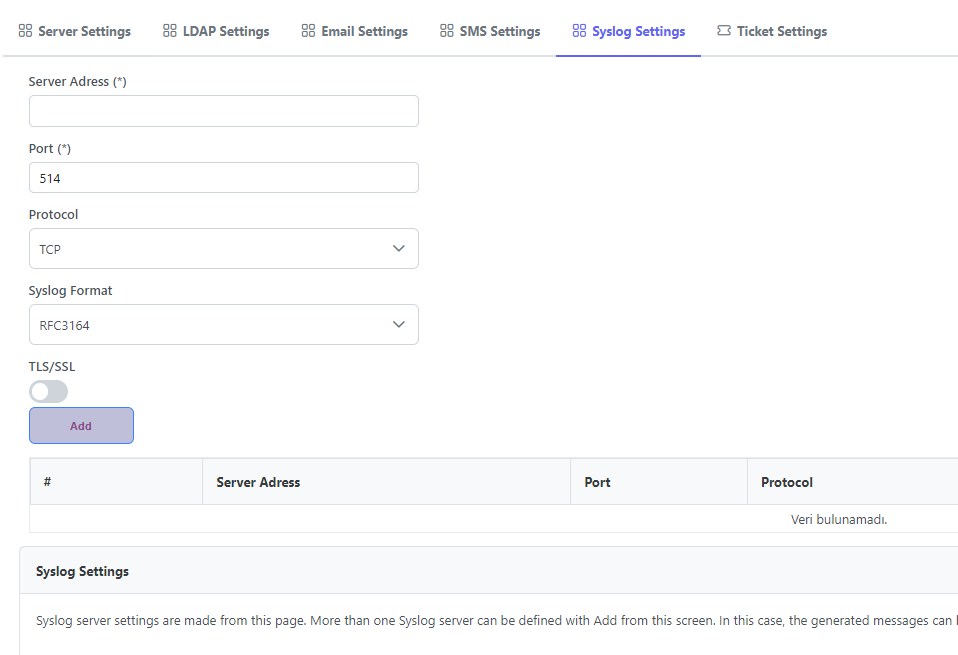
</code></pre>

**\<MIME\_type>** specifies the type of media/file (such as video or text)&#x20;

**\<MIME\_subtype>** identifies the specific type of data of the MIME type represents

### Content Type

Content-Type is used to specify the content type of the object. The browser determines the format and encoding type that are used to read the object based on the content type of the object. If this header is not specified, the value is generated based on the extension of the object name. If the object name does not contain an extension, the default value application/octet-stream is used as the content type of the object.&#x20;

{% hint style="warning" %}
It is **not** a mandatory field.
{% endhint %}

**Content Type Header Syntax**

<pre><code><strong>&#x3C;MIME_type>/&#x3C;MIME_subtype>
</strong>Samples:
<strong>* application/x-www-form-urlencoded
</strong>* application/json
* text/xml
* text/html
</code></pre>

**\<MIME\_type>** specifies the type of media/file (such as video or text).

**\<MIME\_subtype>** identifies the specific type of data of the MIME type represents.

### Header

An HTTP header is a field of an HTTP request or response that passes additional context and metadata about the request or response. For example, a request message can use headers to indicate it's preferred media formats, while a response can use header to indicate the media format of the returned body.

When considered within the scope of SMS settings, the header field is used for basic authentication. In Basic Authentication, Authorize is not used. Authorization (Basic)  information is added to the Header section.

{% hint style="warning" %}
It is **not** a mandatory field.
{% endhint %}

### Request Body

In HTTP, the request body is part of the request message carrying data from the client to the server. It's crucial for methods like POST, PUT, and PATCH, used to create, update, or modify resources. For example, in a POST request to create a user account, user details are in the request body. Methods like GET or DELETE usually don't use a request body, focusing on URLs and headers for resource retrieval or deletion.

In some scenarios, this field can be used for authorization.

{% hint style="warning" %}
It is **not** a mandatory field.
{% endhint %}

Below is an example of using Request Body in ARKSSPR. This field must be filled in accordance with the request of the service provider.&#x20;

```
<@Phone><@Message>
```

### Variables

| Variable | Purpose                            | Format                                                                                                                                                                                                                                                                                                                                                                                                                                                 |
| -------- | ---------------------------------- | ------------------------------------------------------------------------------------------------------------------------------------------------------------------------------------------------------------------------------------------------------------------------------------------------------------------------------------------------------------------------------------------------------------------------------------------------------ |
| Phone    | "To" is used for the phone number. | <@Phone>                                                                                                                                                                                                                                                                                                                                                                                                                                               |
| Phone    | Formatted                          | <p><@Phone,{,###,#######}<br>Each comma-separated field represents a field in the phone number. The 1st part shows the country code, the 2nd part shows the area code, and the 3rd part shows the phone number. The number of each pound sign determines the number of numbers that can enter this field. Country code is not entered. The country code is normalized within the phone number, otherwise the default country code ARKSSPR is used.</p> |
| Message  | Message to send                    | <@Message>                                                                                                                                                                                                                                                                                                                                                                                                                                             |

## Authorization

The Authorization setting is used in non-basic authorization scenarios that require tokens.

### Method Type

The method specified in the SMS API service provider's documentation should be used. The GET method shows the method in which all information goes within the URL, while the POST method shows the method in which the request goes as a package outside the URL.

#### GET Usage

All information is included in the URL.

{% code overflow="wrap" %}

```url
https://authorization.provider.xyz/authorize?username=abc&password=yzt
```

{% endcode %}

#### POST Usage

There is no information in the URL. Only the address is available. The information to be sent to this address is written in the Request Body section.

{% code overflow="wrap" %}

```url
https://authorizationapi.provider.xyz
```

{% endcode %}

### API URL

The URL and the information provided by the authentication provider.

{% hint style="success" %}
It is a mandatory field.
{% endhint %}

### HTTP Accept

The Accept-Post HTTP Response Header signifies that the post is acceptable on the requested resource and approved document format. The Accept-Post HTTP Response header will mention one or more supported document/media types when sent as a Response to the unsupported file.&#x20;

{% hint style="warning" %}
It is **not** a mandatory field.
{% endhint %}

**Accept Header Syntax**

<pre><code><strong>&#x3C;MIME_type>/&#x3C;MIME_subtype>
</strong>Samples:
* application/x-www-form-urlencoded
* application/json
* text/xml
* text/html
</code></pre>

**\<MIME\_type>** specifies the type of media/file (such as video or text)&#x20;

**\<MIME\_subtype>** identifies the specific type of data of the MIME type represents

### Content Type

Content-Type is used to specify the content type of the object. The browser determines the format and encoding type that are used to read the object based on the content type of the object. If this header is not specified, the value is generated based on the extension of the object name. If the object name does not contain an extension, the default value application/octet-stream is used as the content type of the object.&#x20;

{% hint style="warning" %}
It is **not** a mandatory field.
{% endhint %}

**Content Type Header Syntax**

<pre><code><strong>&#x3C;MIME_type>/&#x3C;MIME_subtype>
</strong>Samples:
<strong>* application/x-www-form-urlencoded
</strong>* application/json
* text/xml
* text/html
</code></pre>

**\<MIME\_type>** specifies the type of media/file (such as video or text).

**\<MIME\_subtype>** identifies the specific type of data of the MIME type represents.

### Header

An HTTP header is a field of an HTTP request or response that passes additional context and metadata about the request or response. For example, a request message can use headers to indicate it's preferred media formats, while a response can use header to indicate the media format of the returned body.

If there is no special need during authentication, the Header section is not used and is left blank.

{% hint style="warning" %}
It is **not** a mandatory field.
{% endhint %}

### Request Body

In HTTP, the request body is part of the request message carrying data from the client to the server. It's crucial for methods like POST, PUT, and PATCH, used to create, update, or modify resources. For example, in a POST request to create a user account, user details are in the request body. Methods like GET or DELETE usually don't use a request body, focusing on URLs and headers for resource retrieval or deletion.

Request Body means the data to be sent to the API. To obtain Authorization Token, information such as username and password are written in this field. Entry must be made in the format requested by the API.

After the authorization information is entered, the system makes a request in the background. The resulting token is automatically added to the Header section during SMS sending. The administrator does not need to receive the generated token or enter it anywhere.

{% hint style="warning" %}
It is **not** a mandatory field.
{% endhint %}


# Syslog Settings

Syslog is a standard protocol used for message logging. It allows devices and applications to generate logs, which are messages about events that have occurred. These logs can contain information about system errors, warnings, informational messages, and more.

<figure><img src="https://60632999-files.gitbook.io/~/files/v0/b/gitbook-x-prod.appspot.com/o/spaces%2F-MgdlemWm0JI6_ILmafb%2Fuploads%2Ffrepw6eyl1Xx6xAjNVym%2Fimage.png?alt=media&amp;token=3f7c9302-a191-4c44-93fd-57b0a934c452" alt=""><figcaption><p>Syslog Settings</p></figcaption></figure>

### Server Address

The address of the syslog server. IP address, server name, FQDN etc. formats can be entered. It is mandatory to fill in this field.

### TLS / Port Number / Protocol

TLS is used to determine whether the secure channel will be used in syslog transactions. Although it is a port-independent setting but port information may change depending on the selection made here. The port that the syslog server listens to in order to send messages. By default, most syslog servers use UDP port 514. Secure channel and TCP port information may need to be obtained from the syslog server administrator.

### **RFC 3164**

This document defines the classic Unix syslog protocol and message format. It describes the traditional syslog format used primarily in BSD systems. While still in use in many systems, it lacks structured data and some security aspects.&#x20;

### **RFC 5424**

Bu RFC, daha modern bir yaklaşım sunar ve genişletilmiş syslog protokolünü tanımlar. RFC 5424, geleneksel syslog formatının sınırlamalarını aşmak için yapılandırılmış veri eklemeyi ve daha geniş bir mesaj formatını desteklemeyi amaçlar. Bu sayede, daha karmaşık ve ayrıntılı bilgi aktarımına olanak tanır ve güvenlik özelliklerini içerir.


# Ticket Settings

To configure the helpdesk email address in the "Ticket Settings" section, follow these steps:

1. **Access Ticket Settings:**
   * Log in to your system's administrative panel.
   * Navigate to the **general settings** under **settings** section.
   * Find and select "**Ticket Settings**."
2. **Enter the Email Address:**
   * Enter the desired email address you wish to associate with your helpdesk.
   * After ensuring the correctness of the email address, save the changes by clicking on the "Save"  button.

Please Note:

* Ensure that the email address provided is accessible and actively monitored to manage incoming tickets and correspondences effectively.
* In case of any issues or error messages during setup, refer to the system's documentation or contact support for assistance.
* If you don't enter an e-mail address to this area, tickets can be viewed only in "[Ticket Management](/master/administration/ticket-management)" Screen.


# Login Settings


# General Settings

This section contains 2 options.

<figure><img src="https://60632999-files.gitbook.io/~/files/v0/b/gitbook-x-prod.appspot.com/o/spaces%2F-MgdlemWm0JI6_ILmafb%2Fuploads%2F8Di1P6oDv5PdEo9AyH5U%2Fimage.png?alt=media&amp;token=bbeee495-34a4-4fbb-9070-e0f94df36901" alt=""><figcaption><p>General Login Settings</p></figcaption></figure>

## Show the Random Password Generating

It allows the display or hiding of a button that opens the Random Password Generator screen. This tool generates random passwords with the features you request.

## Validation Type selection

it sets which 2FA verification type should appear as default for all users on the login screen. Users can customize this area for themselves. Users can customize this setting with [Validation Type](/master/administration/my-account/validation-type) under My Account.


# Captcha Settings

You can display captcha, which is an important item for security, with the following settings. Captcha is an important security item, especially to prevent attacks such as brute force.

<figure><img src="https://60632999-files.gitbook.io/~/files/v0/b/gitbook-x-prod.appspot.com/o/spaces%2F-MgdlemWm0JI6_ILmafb%2Fuploads%2F49YVB73vzQKL86IXSMqx%2Fimage.png?alt=media&amp;token=a26fcd80-da2e-479f-97a0-571ec940aa23" alt=""><figcaption><p>Captcha Settings</p></figcaption></figure>

* Show Captcha on Login Page.
* Show Captcha on the Password Reset page.
* Show Captcha on Unlock page.
* Show Captcha the second Email login page.

### Show Captcha On

Another option to set the conditions under which Captcha will be displayed is when it will be displayed. Choose one of the 2 options below.

With the setting "Show after 3 incorrect entries in a row", the captcha display is ensured when the correct entry is made after 3 incorrect attempts.

Continuous display of captcha, regardless of incorrect input, can be set with the Always Show option.

### Validity Period

The validity period of the captcha displayed on the screen is determined by the validity period. If the captcha is not entered within this period, it must be refreshed and a new captcha must be entered because it has expired. Value is between 1 and 5 minutes.


# Validation Settings


# User Settings


# Authenticator Management

## Authenticator Reset

This list shows the list of users who have configured Authenticator for 2FA. Users who have not configured an Authenticator application will not appear on this list.

Users who are members of the Administrators role can reset the user Authenticator QR code via this screen. In this way, the user can configure the 2FA application again.

<figure><img src="https://60632999-files.gitbook.io/~/files/v0/b/gitbook-x-prod.appspot.com/o/spaces%2F-MgdlemWm0JI6_ILmafb%2Fuploads%2FAV9Rrl9L2Fzzwa4rrVII%2Fimage.png?alt=media&amp;token=e609f4c6-d23d-42b8-880d-7387f6942174" alt=""><figcaption><p>Authenticator Reset</p></figcaption></figure>


# Policy Settings


# Password Settings

Restrictions can be set on the Password Settings screen to prevent end users from using simple passwords for password changing and resetting operations.

## Blacklist Settings

A text file with a maximum size of 200 MB can be uploaded to this area by selecting it with the Browse button. The Save button allows the selected file to be processed into the database.

## Password Settings

During the password reset and change process, the rules under which the user can use the password are determined. It is ensured that the character sets selected here are suggestions and those that are not selected are not mandatory. The selected password can be used by using a set less than 1 of the selected set.

For example: While Upper Case Lower Case Number is selected, Special Character is not selected. In this case, the password (qwer1234) that provides at least two options is considered valid. However, an important point to remember is that the password policy here does not overwhelm Active Directory password policies, and at least Active Directory will still apply.

Minimum password length can also be determined in this section.

<figure><img src="https://60632999-files.gitbook.io/~/files/v0/b/gitbook-x-prod.appspot.com/o/spaces%2F-MgdlemWm0JI6_ILmafb%2Fuploads%2FYbiyLZ7U1JVkC5khB8Hp%2Fimage.png?alt=media&amp;token=8c6e3b6e-cbf2-4630-9a0e-6b7c53c6c14e" alt=""><figcaption></figcaption></figure>


# Policy Settings

It is used to enable general password settings to be made specifically for the Organization Unit and/or Security Group.

## Policy Add

### Policy Name

Type a name for the policy.

### Group/OU

Group / Organization Unit selection is made by pressing the + button. On the screen that opens, the domain and object type to be searched are selected. The search is started by typing at least 1 character. A maximum of 100 objects are displayed in the list at a time. The search criteria may need to be made more specific in order to find the desired object.

### Enabled

It determines whether the policy is active/passive.

### Log

It determines whether activities that comply with this policy will be recorded in the log if they occur.

### Process Type

It determines whether Password Reset and Unlock Account operations can be performed.

### Password Settings

It determines the rules to be followed when using passwords. The password rules to be determined in this area cannot exceed the password rules determined in Active Directory at a minimum, they can push them further.

### Validation Type

It determines the 2FA methods the user will use for password reset and unlock operations.

The settings made with the Save button are saved.

## Policy Edit

When the Edit button is pressed, the settings selected for Policy appear on the same screen. After the change is made, it is overwritten with the Save button.

## Policy Priority

It is used to determine the priority of added password policies. On this screen, the order of the policies is determined by drag and drop. Policies are implemented from top to bottom. When a user activity complies with a policy, settings are applied according to that policy, and the next policy will not applied. Merge operation is not performed between policies.

<figure><img src="https://60632999-files.gitbook.io/~/files/v0/b/gitbook-x-prod.appspot.com/o/spaces%2F-MgdlemWm0JI6_ILmafb%2Fuploads%2FTLOView3MrfWAz97sabS%2Fimage.png?alt=media&amp;token=0fc6ed93-82b0-4f6e-8832-10260d56b3e9" alt=""><figcaption></figcaption></figure>


# Portal Settings

## Password Reset

Allow users not to use the password self-service feature.

## Unlock

Allow users to unlock their accounts using their own authentication credentials.

## Password Change

Allow users to change their passwords.

## Support button

Prevent the user from using the help desk on the login screen


# License Management


# Offline License

**Offline Licensing**

ARK2FA can be licensed using the offline licensing method for closed networks. For this method, you must contact the Arksoft Sales department (<sales@arksoft.com.tr>) for license activation.

For offline licensing, the MachineID information found on the software's License Management screen must be shared with the Arksoft Sales team.


# Online License

**Online Licensing**

The ARK2FA software operates by performing an online license check from license.arksoft.com.tr. For the system to perform the license check, access to this address must be provided from the server via TCP 80/TCP 443 ports.

The online license is the recommended licensing model for systems with internet access.


# Log Management


# Screen Management


# Ticket Management


---

[Next Page](https://docs.arksspr.com/llms-full.txt/1)